
Getting started
Adding users
Staff accounts are created directly by an administrator, with a role, and ArkCloud emails the person a link to choose their own password when email delivery is configured. Client users are invited from the client portal instead. This page covers both, and what each kind of new user needs besides an account.
Written for: Organisation administrators
How to get there
RCM: Administration → Users · Rehab: Administration → Users
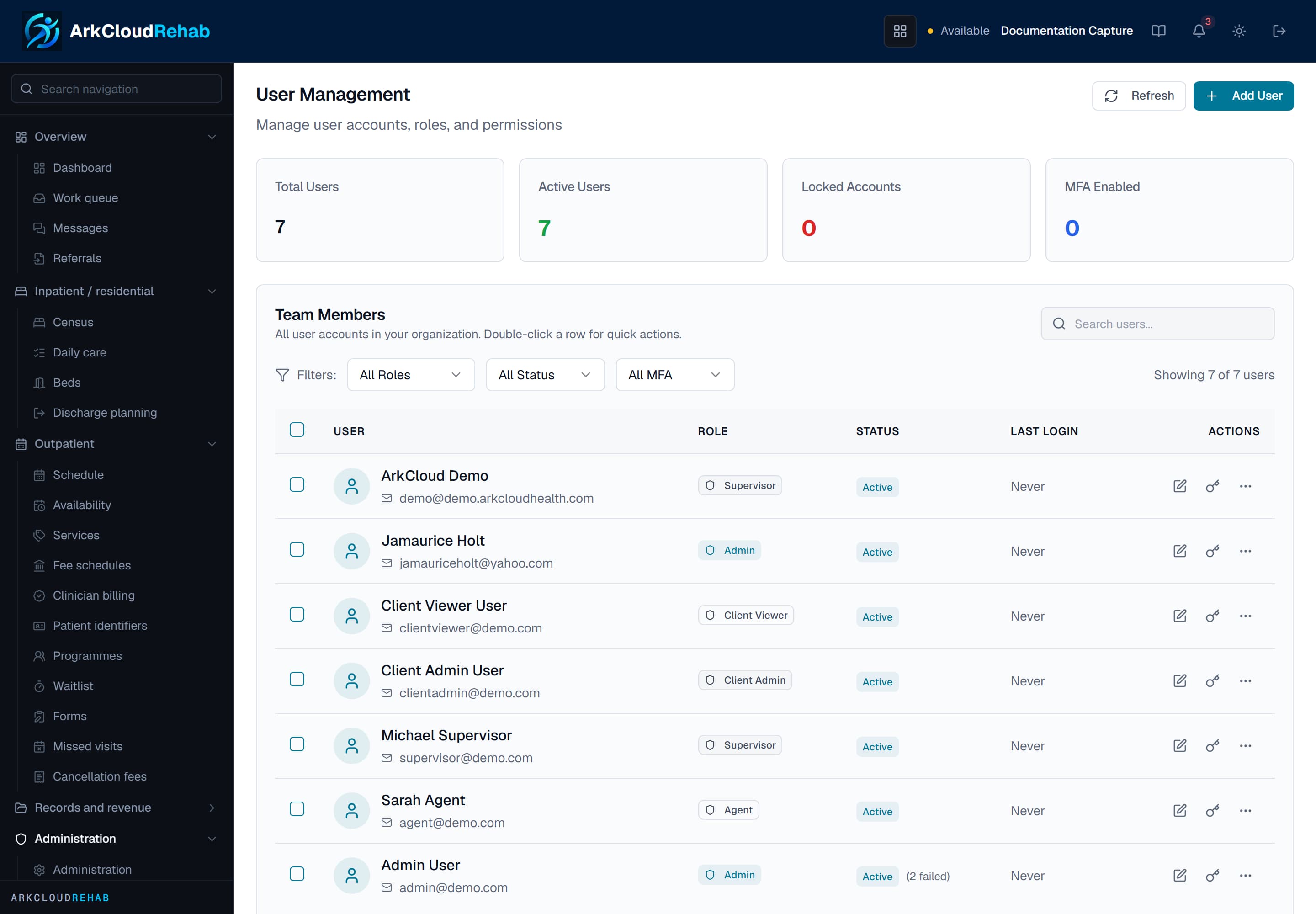
User Management, opened from ArkCloud Rehab. Add User is at the top; each user's row has a menu for password resets, unlocking, signing out, MFA reset and deactivation.
/rehab/admin/users
Creating an account
- Select Add User.
- Enter Full Name and Email. The email must not belong to any other ArkCloud account, in your organisation or any other.
- Choose a Role (see below).
- Leave the password blank to have a random one generated, or select Auto-Generate, or type one of at least 12 characters with an upper-case letter, a lower-case letter, a number and a symbol (@$!%*?&).
- Leave Send Welcome Email on to email the person a link to set their own password.
- Select Create User.
Expected result: the account exists and is active immediately. The confirmation tells you whether the welcome email was actually sent. If it was not - for example because outbound email is not configured - it shows the generated password so you can pass it on yourself, by a channel you trust.
Choosing a role
| Field or control | What it means |
|---|---|
| Agent | Day-to-day work in ArkCloud RCM and ArkCloud Rehab. Cannot open Clinical, Access, Care, Insights or Workforce. |
| Supervisor | Everything an Agent can do, plus team views and reports; admitted to Clinical, Access, Care, Insights and Workforce where your organisation holds them. |
| Admin | Administers the organisation: users, settings, security, billing set-up. The only role that can assemble and submit claims and set fee-schedule rates. Must enrol MFA. |
| Client Admin | An external client of a billing organisation; sees that client's portal and can manage its client users. |
| Client Viewer | Read-only client portal access. |
Details: roles and permissions.
The new user's first sign-in
- They open the link in the welcome email and choose a password, or sign in at arkcloudhealth.com with the password you gave them.
- Administrators are sent to multi-factor setup before any application opens - and so is everyone, if the organisation has switched on Require 2FA for all users in Account settings. Otherwise other roles may enrol by opening
/auth/mfa/setup; there is no menu item for it outside the administrator-only Account settings. - They land on the launcher, or directly in the application they have set to open automatically.
- They can change their password with Forgot password? on the sign-in screen, which emails a reset link - again only if outbound email is configured.
Extra step for Rehab clinicians
Managing existing users
| Field or control | What it means |
|---|---|
| Edit | Change name, email, role or status. Only an Admin can change another Admin. |
| Reset password | Send Reset Email, Generate Random Password, or Set Custom Password. Generating or setting a password also unlocks the account and signs the person out of every existing session. |
| Unlock Account | Clears a lock after repeated failed sign-ins. Locks also expire on their own after 15 minutes. |
| Force Logout | Ends every session the person has; they must sign in again on all devices. |
| Disable MFA | Removes the person's authenticator so they can enrol again - the recovery path for a lost phone. Admin only, recorded in the audit log. |
| Deactivate / Reactivate | A deactivated account cannot sign in. Its history is kept. |
| Remove User | Deactivates the account: the person can no longer sign in, their records and history are kept, and the account can be reactivated later. Nothing is deleted. |
Inviting client users
Users of the client portal (Client Admin and Client Viewer) are invited rather than created. A client administrator selects Invite User on the client portal's Settings → Users screen and chooses Client Admin or Client Viewer; ArkCloud emails the person a link, when email delivery is configured.
- The invitee opens the link. The page shows which email address the invitation is for.
- They enter their name and a password of at least 12 characters containing an upper-case letter, a lower-case letter, a number and a symbol.
- They are taken to the sign-in screen and sign in with that email and password.
| Field or control | What it means |
|---|---|
| Email and role | Taken from the invitation. The invitee cannot change either. |
| Expiry | 7 days. An expired, revoked or already-used link is refused; ask for a new invitation (Resend on the Pending Invites tab). |
| Single use | The link creates one account and is then spent. |
| Existing account | Refused if the email already has an ArkCloud account in any organisation - an email address belongs to one account only. |
Not to be confused with
Workforce → Onboarding tracks a new hire's HR onboarding tasks. It does not create an ArkCloud account. The setup wizard's "Initial Users" step creates accounts the same way Add User does - no password, and a one-time set-password email to each new person - and lists who was and was not emailed. See the setup wizard.