
Security & Compliance
Multi-factor authentication
ArkCloud supports one second factor - a time-based code from an authenticator app, with one-time backup codes - and requires it for administrators. This page states exactly who is required to use it, how it is enforced, and what is not available.
Written for: Security reviewers · Administrators
Questions about a control not described here: Security & Compliance.
Who is required to enrol
| Field or control | What it means |
|---|---|
| Administrators (ADMIN role) | Required. An administrator who has not enrolled is sent to enrolment before any application opens, and API requests answer 401 until they do. |
| Every other role | Optional, unless the organisation has switched on Require 2FA for all users, in which case required like administrators. Supervisors, agents and client users may enrol; once enrolled they are asked for a code at each sign-in. |
| Demonstration organisations | Exempt from the administrator requirement and from the organisation-wide switch. |
| Single sign-on users | The same rule applies to Google sign-in (and to Microsoft sign-in, which is not switched on): an administrator still enrols a second factor in ArkCloud. |
The requirement is enforced by the request middleware on every page and API request, not only at sign-in, and only when the service runs in production mode. That includes the platform pages outside any product: the launcher, first-run onboarding, subscription billing and the operator console. It is also enforced on the server: until the second factor is entered (or set up, where it is required), the session behaves as signed out for every server action and data read, so it cannot be used by calling the server directly.
Methods available
| Field or control | What it means |
|---|---|
| Authenticator app (TOTP) | Six-digit codes, 30-second period, from any standard authenticator app. The shared secret is encrypted at rest (AES-256-GCM). |
| Backup codes | Ten single-use eight-character codes, issued at enrolment and stored hashed. Shown once. |
| Trusted device | After a successful code, a user may tick "trust this device"; that browser is not asked for a code again for 30 days. |
| SMS, email, hardware keys (FIDO2/WebAuthn) | Not available. They appear on the policy screen as planned options only. |
Enrolling or resetting your own second factor
Settings → Users → Your authenticator app → Set up / reset 2FA
- Open the enrolment screen (administrators - and everyone, when the organisation requires 2FA for all users - are sent there automatically).
- Scan the QR code, or type the setup key, into your authenticator app.
- Enter the current six-digit code to confirm the pairing. The setup expires after 15 minutes.
- Store the backup codes somewhere you can reach without your phone.
Visiting the screen again issues a new secret and new backup codes, which replaces the previous authenticator.
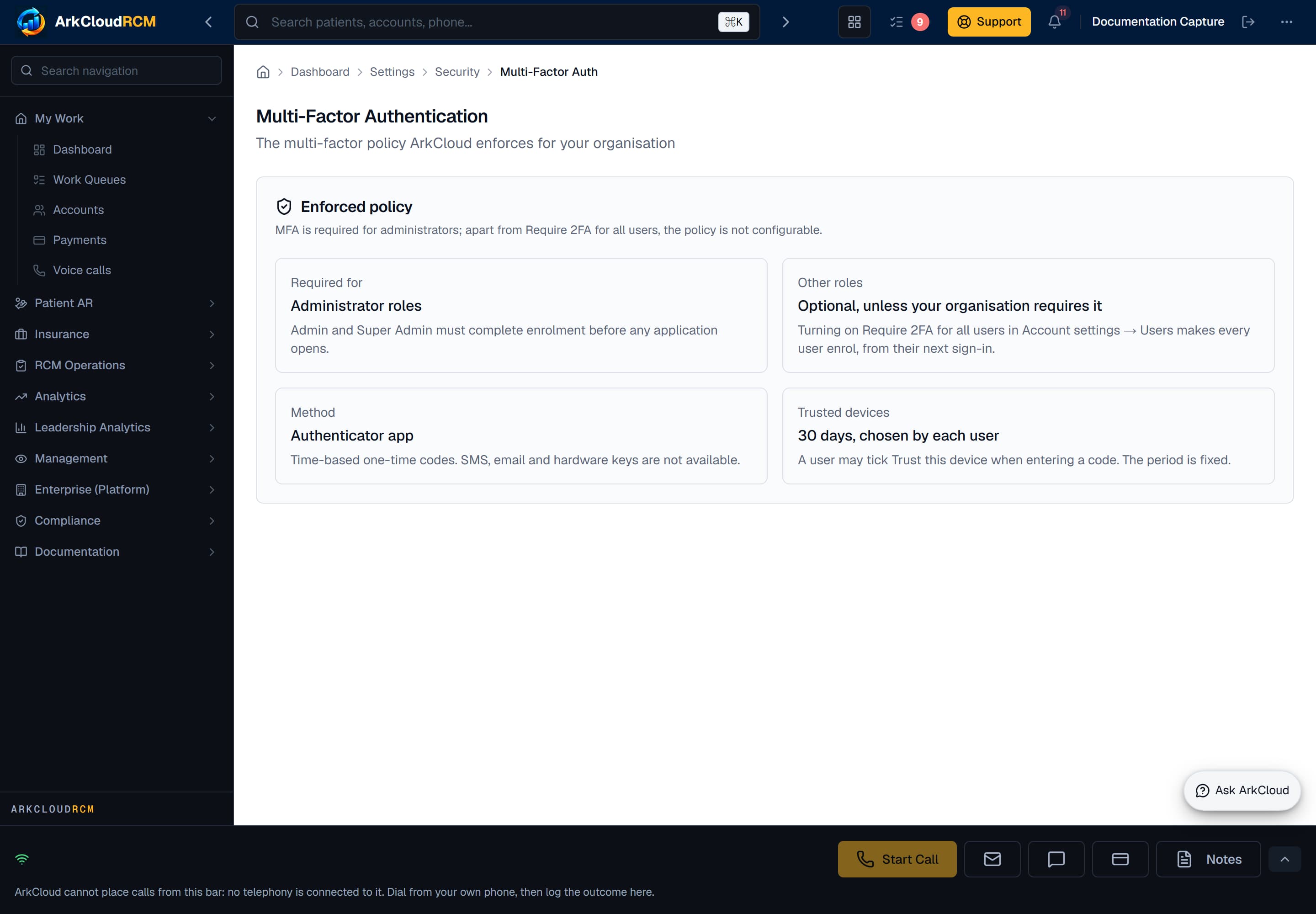
The multi-factor policy screen. The panel at the top states the policy ArkCloud enforces; the controls below it are a preview and save nothing.
/dashboard/settings/security/mfa
Lost device
Sign in with a backup code, then re-enrol. If the backup codes are gone too, an administrator in your organisation can disable the user's second factor from user administration; that action is recorded in the security audit log as ADMIN_MFA_DISABLED. An administrator who loses their own device needs another administrator.
Known limits
- An organisation can require MFA for administrators only (the platform default) or for every user; it cannot choose individual roles. A change to the organisation-wide switch takes effect at each user's next sign-in.
- Code entry is limited: after 5 wrong codes in a row (authenticator or backup codes), verification is refused for 15 minutes with "Too many incorrect codes. Wait 15 minutes and try again." The limit is per user and cannot be configured.
- There is no report of which users have enrolled; the enrolment figures that used to appear on the policy screen were placeholders and were removed.