
Getting started
First steps, by role
Once you can sign in, these are the screens to open first for the work you do. If your organisation is brand new, your administrator should finish first-day setup before you start - several of these screens are empty, or cannot complete their work, until it is done.
Written for: Clinicians · Billing and collections staff · Supervisors · Front-desk staff
Rehab clinicians
| Field or control | What it means |
|---|---|
| Overview → Dashboard | Today: your appointments and what needs attention. |
| Outpatient → Schedule | Appointments by day and clinician. |
| Records and revenue → Patients / Episodes | The patient record and the episode of care a note belongs to. |
| Records and revenue → Notes | Notes in progress and awaiting signature. |
| Overview → Work queue | Tasks assigned to you or your team. |
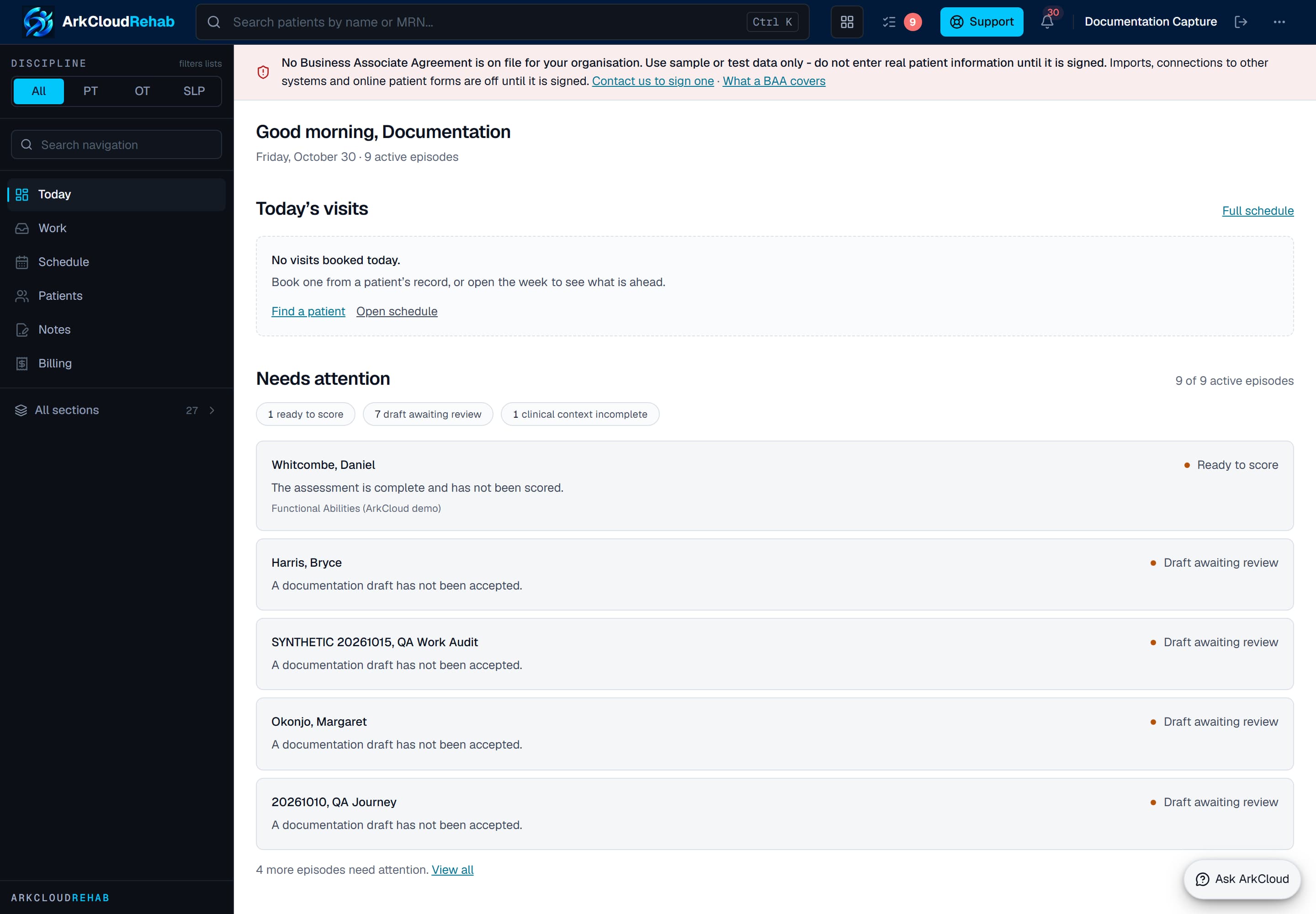
The Rehab dashboard - the first screen a clinician sees in ArkCloud Rehab.
Empty state. Captured in a demonstration organisation with no records of this type yet. The controls, columns and filters are the ones a populated screen uses.
/rehab/dashboard
Continue with the Rehab clinical workspace.
Billing and collections staff (ArkCloud RCM)
| Field or control | What it means |
|---|---|
| My Work → Work Queues | The accounts queued for you to work. |
| My Work → Accounts | Find a patient account by name, account number or phone. |
| Insurance → Claims | Claims and their status. Assembling and submitting claims needs the Admin role. |
| Patient AR → Payment Plans / Statements | Patient balances, plans and statements. |
Continue with the RCM user guide.
Supervisors
In RCM, the Management group (Supervisor, Queue Distribution, Escalations) and Analytics are the oversight screens. Supervisors may also open Clinical, Access, Care, Insights and Workforce where your organisation holds them.
Front desk and patient access (ArkCloud Access)
Referrals, Registration, Intake forms, Consents, Waitlist, Check-in, Benefits, Authorizations and Messages are the working screens. Access admits supervisors and administrators only. Eligibility checks need payer (Availity) credentials connected for your organisation before they can run - see eligibility.
Worth doing on day one, whatever your role
- Set the application you use most to open automatically, from the launcher.
- Enrol an authenticator app even if your role does not require it, at
arkcloudhealth.com/auth/mfa/setup(administrators: Account settings → Users → Set up / reset 2FA). - Learn where things are: navigation and, in RCM, keyboard shortcuts.