
User Guide
Notes and tasks
Notes record what happened on an account; tasks record what needs to happen next. Both are added from the account's Notes tab.
Written for: Collectors and billing staff · Supervisors
Adding a note
Account → Notes tab → Add Note
- Select Add Note.
- Choose a Note Type and write the note.
- Select Save Note.
Every note is visible to everyone who can open the account. There is no private or team-only note, no @-mention and no note priority.
Note types
General, Call Notes, Payment, Dispute, Hardship and Compliance. Call Notes is saved as an outbound call; the others are saved as notes, and the list shows that rather than the type you chose.
Creating a task on an account
- On the account's Notes tab, select Create Task.
- Enter a Task Title and, optionally, a description.
- Choose a priority (High, Normal or Low) and a due date. The due date defaults to a week ahead.
- Save. The task is assigned to you.
The Task Queue
ArkCloud RCM → RCM Operations → Task Queue
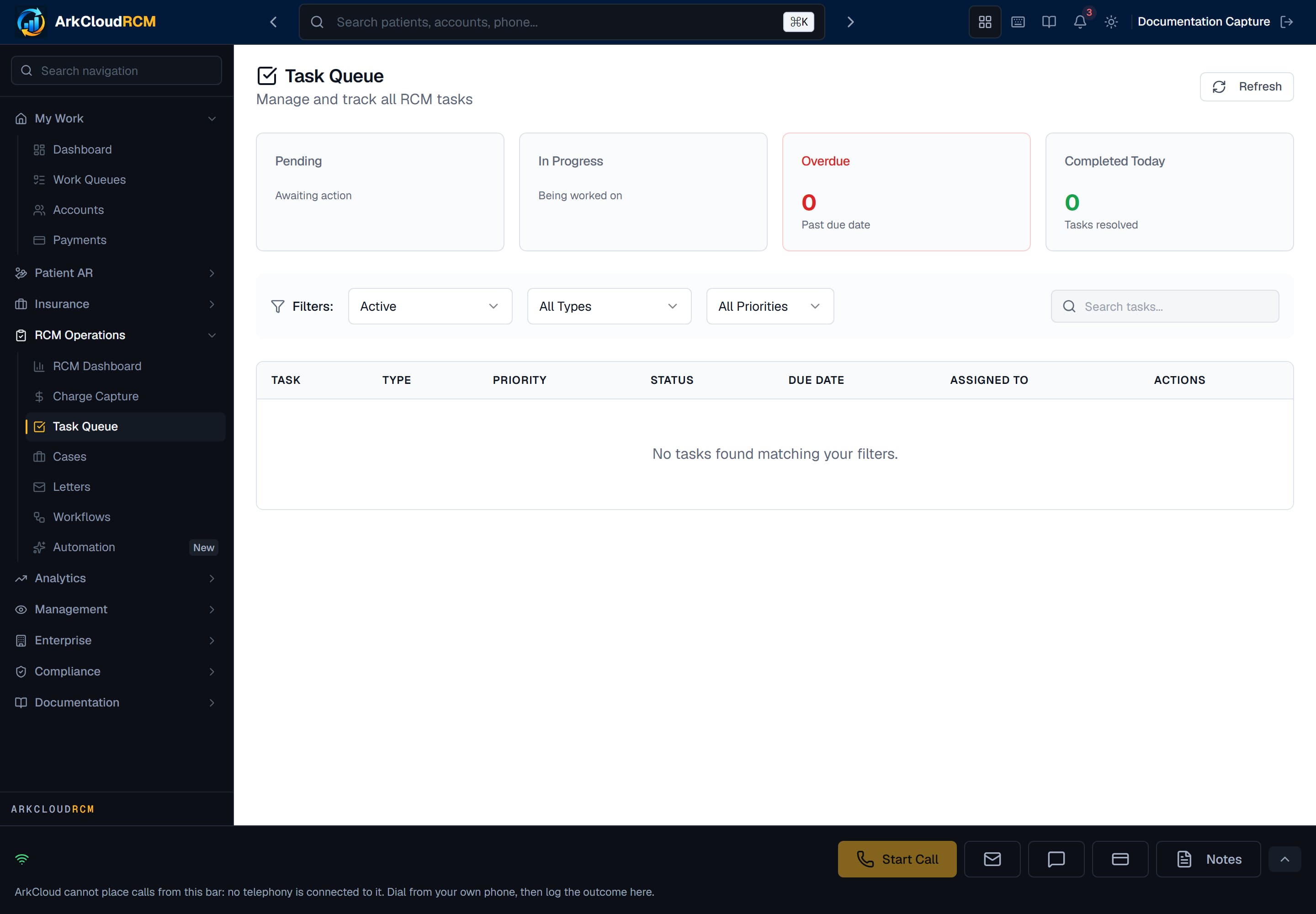
The Task Queue: summary counts across the top, then a filterable table of RCM tasks.
/dashboard/rcm/tasks
| Field or control | What it means |
|---|---|
| Summary | Pending, In Progress, Overdue and Completed Today. |
| Filters | Status (Active, Pending, In Progress, Completed, Cancelled), Type and Priority (Urgent, High, Medium, Low). |
| Task types | Callback, Send letter, Verify insurance, Financial assistance application, Supervisor review, Dispute follow-up, Payment follow-up, Document request, Other. |
What is not available
- Personal or team task views, and a "due this week" view.
- Reassigning, re-dating or commenting on a task, or attaching a file.
- Task reminders or notifications.
- Recurring tasks.
Good practice
Write notes for the next person: what was said, what was agreed, and what should happen next. Put a due date on any follow-up as a task, and check your accounts' Notes tabs for open tasks, since nothing will remind you. See activity logging.