
Getting started
Multi-factor authentication
A second factor protects the accounts that can change other people's access. This page covers who is required to enrol, how enrolment works, and exactly which parts of the policy an organisation can and cannot change today.
Written for: Administrators · Security reviewers · All users
Who is required to enrol
ArkCloud requires multi-factor enrolment for administrator roles. Every other role may enrol and is not required to - unless your organisation has switched on Account settings → Users → Two-Factor Authentication ("Require 2FA for all users"), in which case every user must enrol.
The requirement is checked on every request, not only at sign-in. An administrator who has not enrolled is sent to enrolment before any application opens and cannot navigate past it. That is the control working, not a sign-in failure - and it is worth knowing before you conclude an account is broken.
| Capability | Status | What that means here |
|---|---|---|
| Multi-factor authentication with an authenticator app | Available | Six-digit codes from an authenticator app, plus one-time recovery codes. Required for every administrator before any application opens; optional for everyone else. |
| Require multi-factor authentication for every user | Available with configuration | An administrator can extend the requirement from administrators to every user in the organisation.Requires: An administrator switches on Require 2FA for all users in Account settings. It applies from each user's next sign-in. |
| Codes by text message, or hardware security keys | Not available | The only second factor is an authenticator app. Codes by text message or email, and hardware keys, are not offered. |
Enrolling a second factor
Sign in → Multi-factor setup (automatic for administrators, and for everyone when the organisation requires 2FA)
Administrators can also reach it from Account settings → Users → Your authenticator app → Set up / reset 2FA. Other roles have no menu item for it: open /auth/mfa/setup directly. Opening setup again re-enrols you - it issues a new secret and new backup codes, and the old ones stop working.
- Install an authenticator application on your phone if you do not have one.
- Scan the QR code shown on the enrolment screen, or type the setup key if your device cannot scan.
- Enter the six-digit code your authenticator generates, to prove the pairing worked.
- Store the recovery codes somewhere you can reach without your phone.
Expected result: your account is enrolled, and future sign-ins ask for a code from your authenticator in addition to your password - unless you ticked Trust this device for 30 days on this device.
In ArkCloud Rehab, an enrolled clinician also enters an authenticator code when signing, co-signing, amending or locking a clinical note (once per 10 minutes); without enrolment, the password is asked for instead. An account that signs in only with Google and has no authenticator signs on its current session alone, so enrolling an authenticator is the stronger choice for clinicians. See Signing, co-signing and amending notes.
What an organisation can configure
One switch. Apart from it, the enforced policy is fixed by the platform, and the Multi-Factor Auth screen states that rather than accepting changes it cannot apply. The switch is Account settings → Users → Two-Factor Authentication ("Require 2FA for all users"). When it is on, every user in the organisation must use a second factor, not only administrators. It is read when a user signs in, so it applies from each user's next sign-in: someone already signed in is not affected until they sign in again. A user who has not enrolled is sent to enrolment before any application opens.
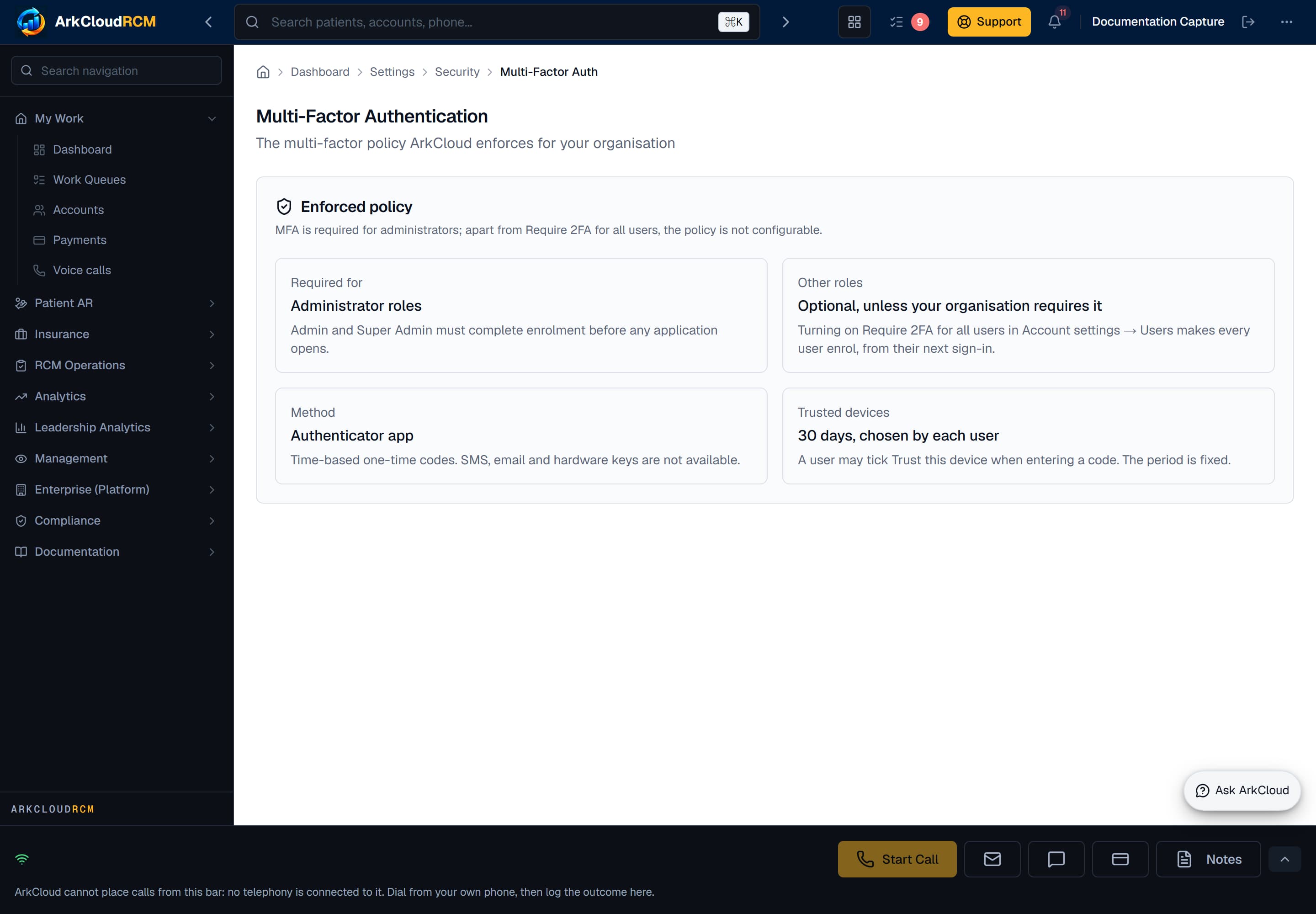
Real screen · synthetic data. The multi-factor settings screen, which states the policy ArkCloud enforces. It has no controls: apart from Require 2FA for all users, the policy is not configurable.
/dashboard/settings/security/mfa
| Field or control | What it means |
|---|---|
| Which roles must enrol | Administrator roles always. The organisation can extend this to every user with Require 2FA for all users; it cannot pick individual roles. |
| Method | Time-based one-time codes from an authenticator application. SMS, email and hardware keys are not available. |
| Grace period | None. Enrolment is required before an administrator reaches any application. |
| Trusted devices | Each user may tick Trust this device for 30 days when entering a code. The organisation cannot change the 30 days or turn the option off. |
| Resetting a user's second factor | An administrator action, recorded in the audit trail. |
Troubleshooting
| Field or control | What it means |
|---|---|
| Codes are rejected | Almost always clock drift on the phone. Time-based codes depend on the device clock; enable automatic time and try again. |
| "Too many incorrect codes" | After 5 wrong codes in a row, codes are refused for 15 minutes. There is also a daily ceiling: 20 wrong codes within 24 hours (counted since your last correct code) refuse codes until the oldest of them is a day old. Wait, check the phone's clock, and try again. |
| Stuck on the enrolment screen | Expected for an administrator who has not completed enrolment, and for any user when the organisation requires 2FA for all users. Finish it, or ask another administrator to change the role if the account should not be an administrator. |
| Lost the device and the recovery codes | Another administrator in your organisation must reset the second factor. There is no self-service path, deliberately. |
| Asked for a code on every sign-in | Tick Trust this device for 30 days on the code screen. A device is recognised by its browser identification and language, so a different browser - or a browser update that changes how it identifies itself - is asked again. |