
User Guide
Working with queues
A work queue is a named list of accounts. Supervisors and administrators assign accounts to collectors; collectors open the queue and take the next account assigned to them.
Written for: Collectors · Supervisors · Administrators
How queues work
Supervisors and administrators create queues in the Set up queues panel at the foot of Queue Management: a name, a description and a priority (0-100), and later edit, deactivate or reactivate them. A queue has no rules - nothing places accounts in it automatically. Accounts are placed with collectors through Management → Queue Distribution, which needs the Admin role. A supervisor or administrator can also select accounts on the Accounts screen and choose Add to queue.
Within a queue, accounts are always ordered by priority, then highest balance, then newest. You cannot change the order.
Working your queue
ArkCloud RCM → My Work → Work Queues
- On Queue Management, find your queue and select Work this queue.
- On Queue Accounts, select Get Next Account. It opens the next account assigned to you.
- Work the account - record the call on the Script tab and add notes - then return to the queue for the next one.
Get Next Account only returns accounts already assigned to you; it does not hand out unassigned work.
Filtering a queue
| Field or control | What it means |
|---|---|
| Min / Max Balance | Limit by balance. |
| Aging Bucket | 0-30 days up to 181+ days. |
| Priority | High (1), Medium (2) or Low (3). Priority is stored as a number; 1 is highest. |
| Quick filters (rule-based) | Balance $100-$1,000; Balance up to $500; $1,000+ and over 90 days. Fixed balance and aging rules, not a model. Clear removes the quick filter. |
The queue table shows Priority, Account #, Patient, Payer, Balance, Age, Status, Assigned To, Last Action and Next Action. Click a row to open the account.
| Field or control | What it means |
|---|---|
| Payer | The payer on the account's most recent primary claim. "Self Pay" only for a self-pay account with no claim payer; otherwise a dash when no payer is known. |
Select one or more rows to act on them together:
| Field or control | What it means |
|---|---|
| Set Priority | Sets High (1), Medium (2) or Low (3) on every selected account. |
| Generate Statements | Generates a statement for each selected account with a balance due. It does not send them - review, then send or print them from AR → Statements. |
| Export CSV | Downloads the selected rows as a CSV file. |
The AR Work Queues screen
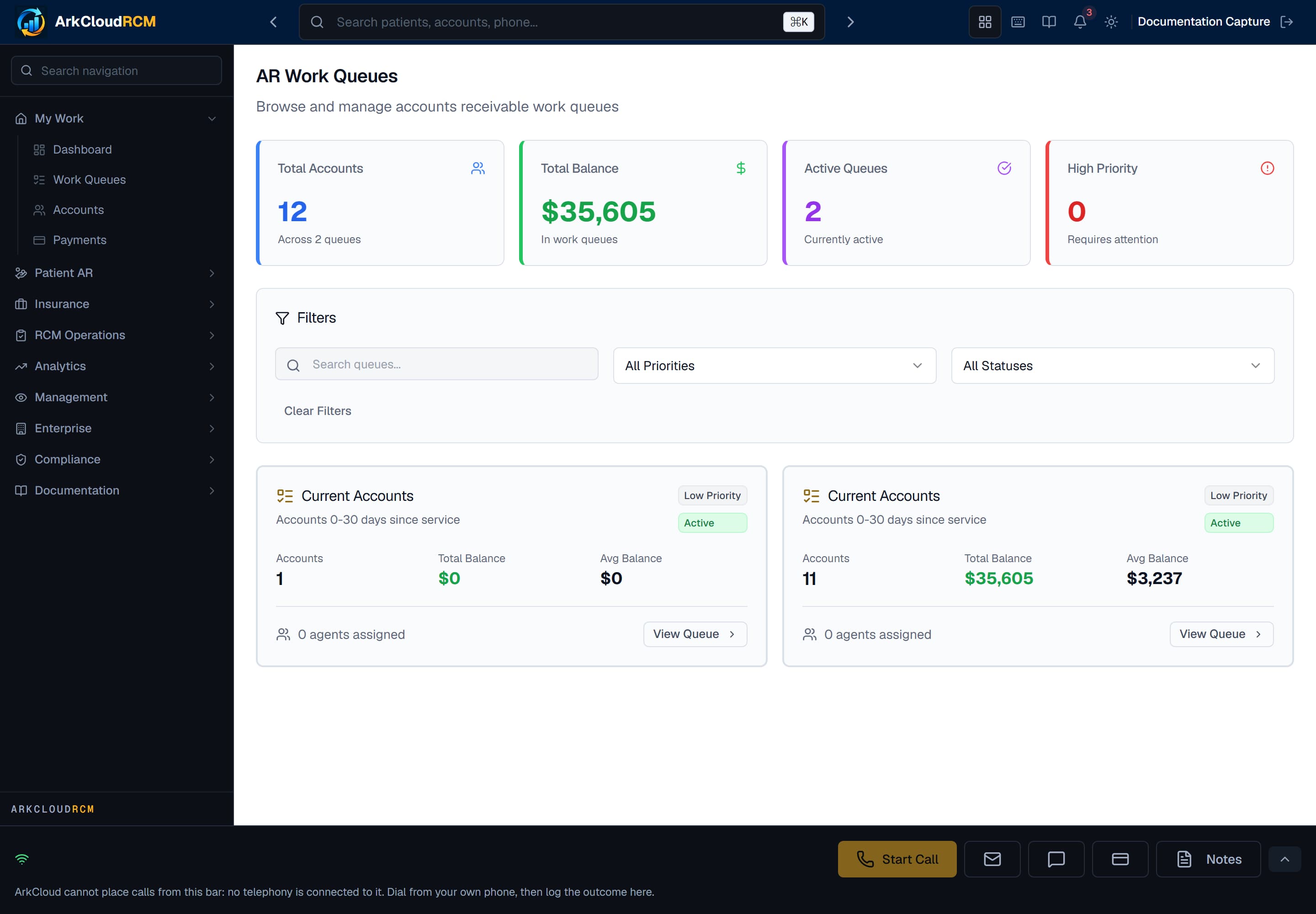
The AR Work Queues screen. It groups accounts into aging buckets for an overview; its View links lead to empty queues, so work from My Work → Work Queues instead.
Empty state. Captured in a demonstration organisation with no records of this type yet. The controls, columns and filters are the ones a populated screen uses.
/dashboard/ar/queues
AR Work Queues is no longer in the navigation menu; it is reachable only at /dashboard/ar/queues.
Recording the outcome
There is no disposition step inside the queue. Record the call outcome on the account's Script tab - see activity logging for the list of outcomes.
Good practice
- Work in the order Get Next Account gives you; it already puts priority and balance first.
- Record every call outcome before moving on, so the account's history is complete.
- Administrators: check Queue Distribution regularly - collectors cannot take unassigned accounts themselves.