
Getting started
Administrator first-day setup
What an organisation administrator configures before colleagues start work, in the order it matters. Each step names the screen and the path to it. Steps that only ArkCloud can do are marked, so you can ask for them on day one.
Written for: Organisation administrators · Implementation teams
Before you start
Settings belong to the organisation, not to one application. The same screens are reached from ArkCloud RCM (sidebar Administration and Settings groups) and from ArkCloud Rehab (sidebar Administration), and a change made in one applies in both.
1. Enrol multi-factor authentication
Administrators cannot open any application until they have enrolled an authenticator app; you are sent to setup automatically at first sign-in. See multi-factor authentication. Do this for every administrator you create.
2. Organisation profile
RCM: Settings → Organization · Rehab: Administration → Account settings
On the Organization tab enter the organisation name, address, phone, primary email, NPI and Tax ID, then Save. The name you enter is the name shown across ArkCloud.
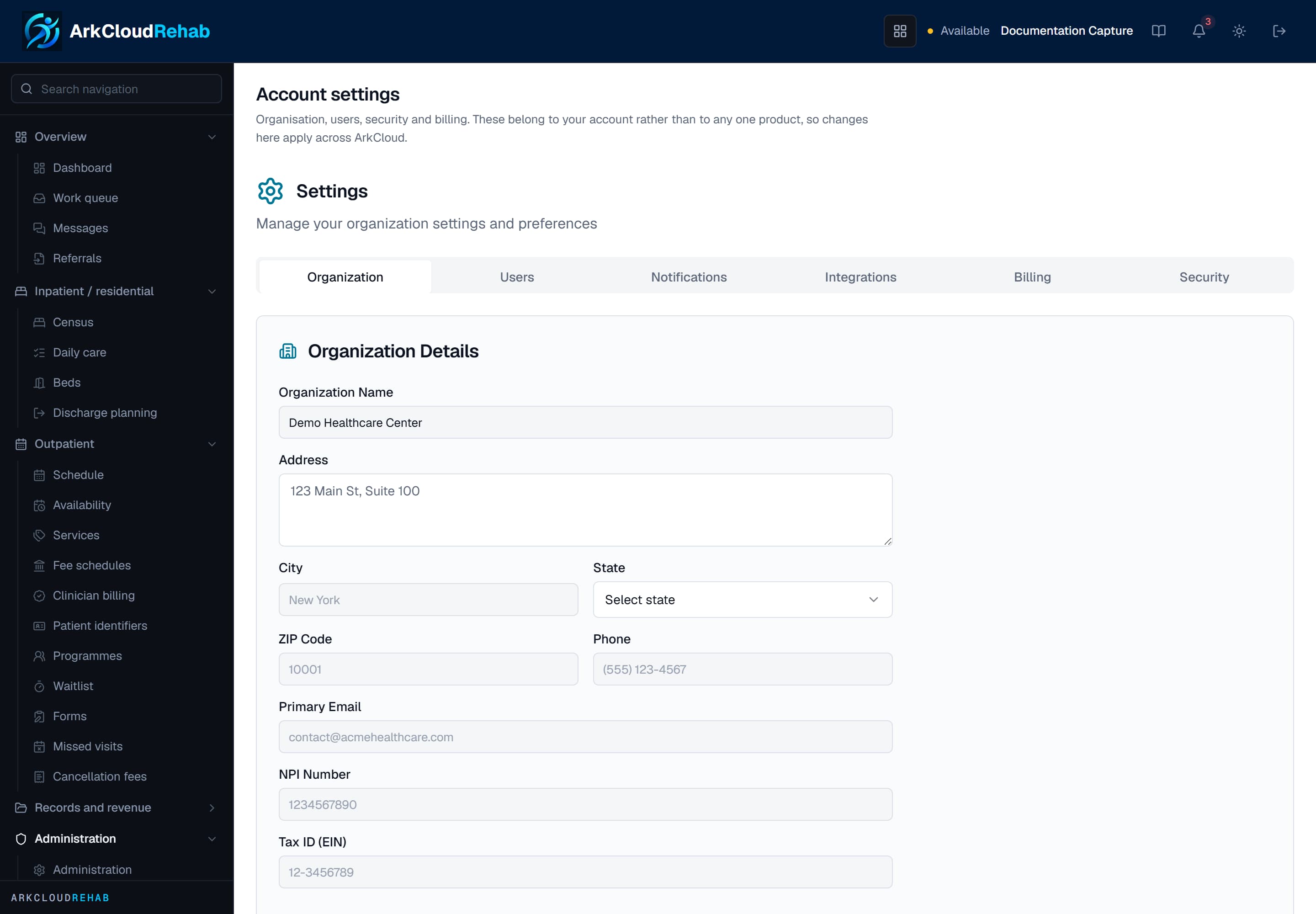
Account settings opened from ArkCloud Rehab. The tabs - Organization, Users, Notifications, Integrations, Billing, Security - are the organisation's, whichever application you open them from.
/rehab/settings
3. Facilities, payers and fee schedules
| Field or control | What it means |
|---|---|
| Facilities | RCM: Settings → Facilities. Add at least one facility with its billing NPI, Tax ID, taxonomy and place of service. With one active facility, claims use it as the billing provider. With several, a claim uses the facility named on its visits and is refused if the visits do not identify one - so deactivate facilities you do not bill under. See facilities. |
| Payers | RCM: Settings → Payers. Add the payers you bill, with payer ID, trading-partner ID and filing limits. See payers. |
| Fee schedules | RCM: Settings → Fee schedules · Rehab: Outpatient → Fee schedules. The same schedules, from either application. See fee schedules. |
4. Rehab: patient identifiers, services and availability
| Field or control | What it means |
|---|---|
| Outpatient → Patient identifiers | Who issues medical record numbers. The default is External: staff type the MRN from your own record system. Choose ArkCloud to have a blank MRN assigned at registration from a prefix and counter you set. A typed MRN is always accepted in either mode. |
| Outpatient → Services | The bookable services, with their durations. |
| Outpatient → Availability | When each clinician can be booked. |
| Administration → Clinic setup checklist | A read-only list of what is in place and what is still missing before go-live - billing NPI and tax ID, a location, clinicians ready to sign and bill, supervision for assistants, payers, fee schedule, services, MRN policy, reminders, self-scheduling and documentation requirements. It is worked out from your records each time you open it; there is nothing to tick. |
| Administration → Data migration | Admin and Super Admin only. Brings patients, coverage, referrals, episodes, authorizations and upcoming visits across from another EHR. Every upload is a dry run first; you review the batch and its possible duplicate matches, then commit it. A committed batch can be rolled back: it removes only what the batch created and nobody has changed or linked to since, and reports anything it kept. Browser uploads are limited to about 900 KB in total; larger exports go through a command-line import run on the server. |
5. Add your users
RCM: Administration → Users · Rehab: Administration → Users
Select Add User, enter the name, email and role, and either let ArkCloud generate a temporary password or set one. Full procedure, including what to do when the welcome email does not arrive: adding users.
6. Clinician billing - required before any billable signature
Rehab: Outpatient → Clinician billing
A note releases its visit for billing only when the person who signs it:
- has an active ArkCloud user account in your organisation;
- has been granted the episode's discipline on this screen (Physical therapy, Occupational therapy, Speech-language pathology or Multidisciplinary);
- is linked to an active ArkCloud Workforce staff record (choose the record and select Link);
- has at least one credential recorded on that Workforce record, none of them expired (add licences under Workforce → Credentials);
- for an insurance claim line, has an NPI saved on this screen (with an optional taxonomy code).
Expected result: each clinician's row shows a discipline, a linked Workforce record and NPI on file, and their next signed note releases its visit to billing.
7. Steps only ArkCloud can do
| Field or control | What it means |
|---|---|
| Clearinghouse | Claims are transmitted only once ArkCloud has connected a clearinghouse for the deployment. Until then a claim can be assembled but is not sent. |
| Card payments | Two parts. ArkCloud enables payment processing for the deployment; then an administrator connects your practice's own Stripe account under RCM Settings → Payments (in Rehab, at /rehab/settings/payments - it is not in the Rehab sidebar). Patient payments are charged on your Stripe account, never on ArkCloud's. Card payments on staff screens and in the patient portal are refused until both are in place; on the hosted service payment processing is not yet enabled. |
| Outbound email | Welcome emails, password-reset links and appointment emails are sent only when email delivery is configured. Check it yourself: RCM Settings → Email, or in Rehab Account settings → Integrations → Email Service; the screen can send you a real test message. |
| Sales-led applications | Access, Care, Insights, Workforce and Clinical are enabled for an organisation by ArkCloud. |
About the setup wizard at /onboarding
A seven-step setup wizard exists at /onboarding. Nothing in the product links to it, sign-up does not open it, and it is not needed - every step above is done from the regular screens. Only an administrator can save a step; anyone else is refused. The wizard is titled "Welcome to ArkCloud" whichever products your organisation uses. If you do open it, know what each step actually saves:
| Field or control | What it means |
|---|---|
| Organization Information | Saves the organisation name (used everywhere) and keeps the other details in the wizard's own record. |
| Initial Users | Creates each new account (Admin, Supervisor or Agent), active and with no password, and emails the person a one-time link to choose their password (valid 3 days) - the same email Administration → Users sends. The step then lists, per person, whether the email went. Someone who already has an account - in this organisation or another - is skipped, not emailed and named in the list (another organisation is not identified); everyone else on the list is still created. An email entered twice is added once. If email delivery is not configured nobody is emailed and the list says so. |
| Payment Processor | Records which processor you plan to use and whether you want test or live mode. It asks for no keys and connects nothing; Stripe is connected afterwards from Settings → Payments. |
| Amazon Connect | Records the instance ID only and asks for no AWS credentials. The connection (region and credentials) is finished under Connect → Settings. |
| Clearinghouse | Records your choice only and asks for no credentials. Nothing is connected or transmitted; ArkCloud sets up the clearinghouse connection with you. |
| Demo Data | Only in an organisation marked as a demo - the same rule as Administration → Demo Data. In a real organisation the step says sample data is not available and writes nothing, and the server refuses it too. |
| Review & Complete | Summarises what was recorded - a processor or clearinghouse "chosen - not connected yet", an Amazon Connect instance ID "recorded" - and marks the wizard complete. It never reports a connection. |