
Getting started
The application launcher
The launcher is where you choose which ArkCloud application to work in. It is also an honest statement of what your account can open, which is why it lists applications it will not let you into.
Written for: All users · Administrators · Evaluators
How to get there
Sign in → Launcher
Signing in lands here unless you have chosen an application to open automatically, you were following a link into a specific page, or your account can open only one application - then you go straight into it. A clinician whose organisation holds only Rehab, for example, arrives in Rehab. From inside any application, open the application switcher (the grid icon in the header) and choose All products to return to it.
What the launcher shows
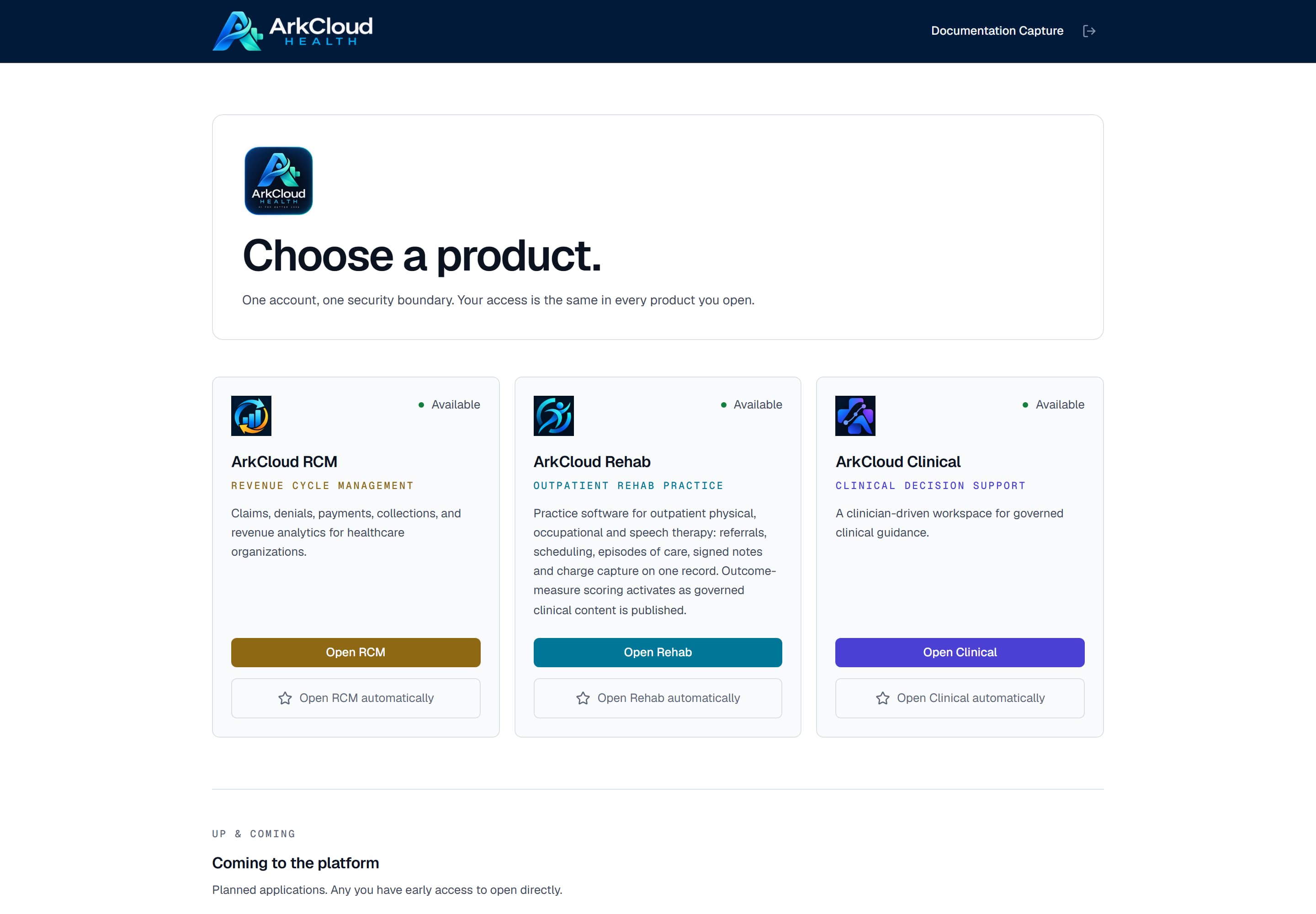
Real screen · synthetic data. RCM, Rehab and Clinical appear as cards in the top grid: Available with an Open button when you can enter, No access with the reason on a disabled button when you cannot. Below them, under More applications, are Access, Care, Insights and Workforce.
/launcher
| Field or control | What it means |
|---|---|
| Available | Shown on an RCM, Rehab or Clinical card when you can enter it right now: your organisation holds an active subscription, your role is admitted, and the application's lifecycle state lets you in. The Open button works. |
| More applications | The section holding ArkCloud Access, Care, Insights and Workforce. These are Available, sales-led applications. Each card shows Open and links into the application when your account can enter it; otherwise it shows its availability (for example Available with how many of its capabilities are built) and a Learn more link to its product page. |
| No access | Shown on an RCM, Rehab or Clinical card you cannot enter. The disabled button underneath names the reason - Not included in your plan, Subscription inactive, Not available to your role, Preview access required, or - when the application is switched off - Not available (Private Preview on the Clinical card). These are different problems with different fixes - see Troubleshooting. |
| Open … automatically | A preference that belongs to you alone, offered on the RCM, Rehab and Clinical cards you can open. Sets the application you land in after signing in, and can be changed at any time. |
| Back office | A separate Internal section, shown only to ArkCloud platform operators. Customer accounts never see it. |
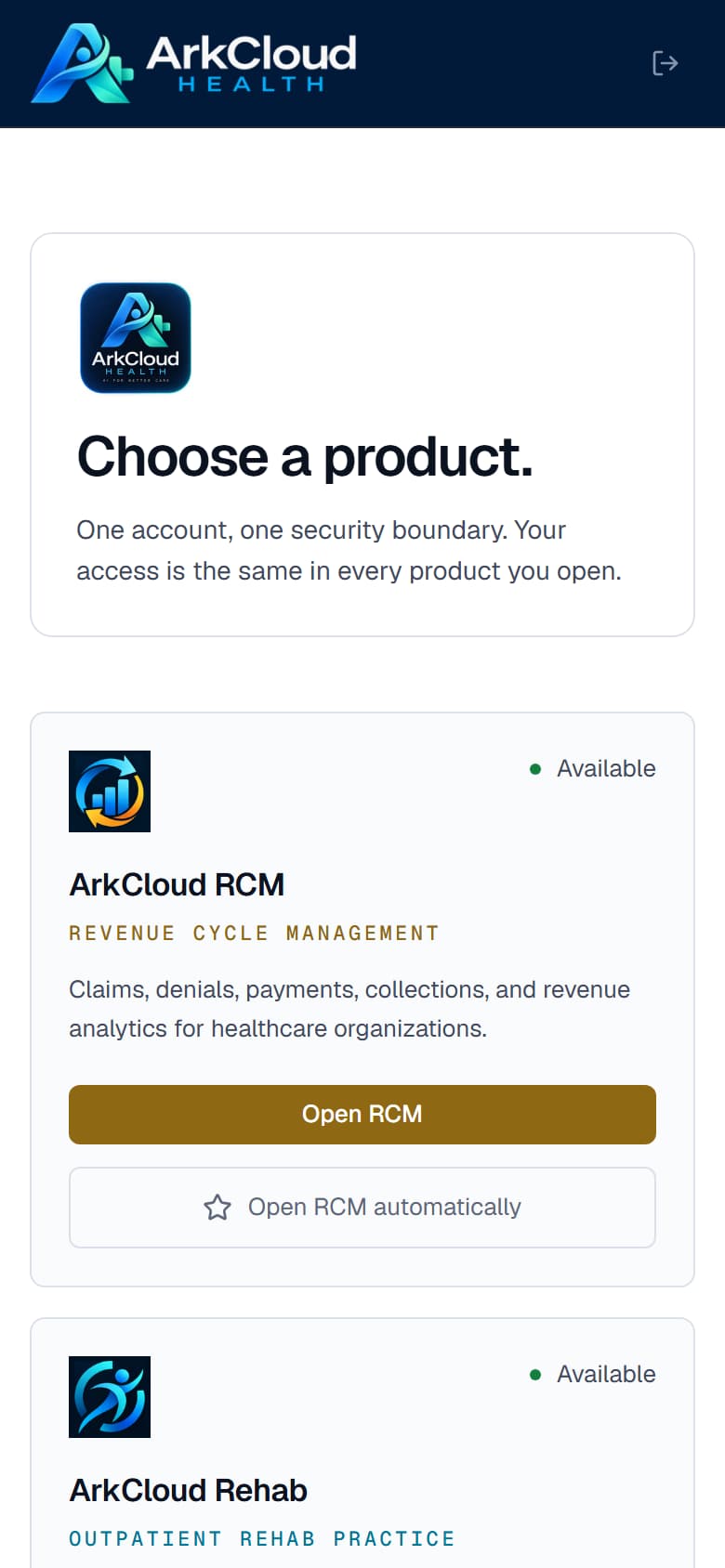
Real screen · synthetic data. At phone width the cards stack into a single column. Everything available on a desktop is available here - the launcher is not a reduced experience on a small screen.
/launcher
Opening straight into one application
- Open the launcher.
- On the application you work in most, select Open … automatically.
- Sign out and back in to confirm you arrive there rather than at the launcher.
Expected result: future sign-ins skip the launcher. The preference does not affect colleagues and does not change what you may open. If you later lose access to that application, sign-in shows the launcher instead of sending you into a refusal. To reach the launcher while a default is set, use All products in the application switcher.
Troubleshooting
"No access" has three independent causes, and all three must be satisfied before an application opens. Fixing the wrong one changes nothing, which is what makes this worth stating explicitly.
| Field or control | What it means |
|---|---|
| Your organisation has no entitlement | Your organisation has no active subscription to that application (the button reads Not included in your plan, or Subscription inactive when a subscription or trial has lapsed). A new sign-up starts a trial of every product except Clinical; after the trial, products are continued by subscription, and Clinical is opened by invitation only. |
| The application is not switched on | Each application has a lifecycle state - enabled, preview or disabled - set by ArkCloud and independent of your subscription. While it is disabled nobody can enter it; in preview, only accounts or organisations granted early access can (the button reads Preview access required). |
| Your role is not admitted | Each application admits its own set of roles. ArkCloud RCM, Rehab and Access admit agents upwards; Clinical, Care, Insights and Workforce start at supervisor. See roles and permissions. |
| Every card says No access | The launcher always lists every application, so it is never empty. If nothing offers Open, your account is valid and no application meets all three conditions above. Contact your administrator; this is not something you can resolve yourself. |