
ArkCloud Rehab
Check-in and arrival
When a patient arrives, the front desk checks them in on the day's schedule. This page covers what that records, what it does not do - it does not alert the therapist - and how the visit moves on to Start visit, Write note and Complete.
Written for: Front desk staff · PT, OT and SLP clinicians · Clinic administrators
When you use it
Check a patient in when they are physically at the clinic for a booked visit. There is no separate check-in screen in Rehab: check-in is a button on the patient's row of the schedule. Clinics that use ArkCloud Access can do the same from Access's check-in board - it is the same check-in.
Checking in at the desk is different from online check-in, where a patient confirms their details and completes forms in the patient portal before the visit. Online check-in, where your clinic has switched it on, never marks a patient as arrived.
Checking a patient in
ArkCloud Rehab → Outpatient → Schedule
- Open the Schedule. It shows today; use the arrows to move a day at a time.
- Find the patient's row. Its status reads Scheduled or Confirmed.
- Press Check in. The status changes to Checked in, with the time underneath, and the Checked in count at the top goes up by one.
In ArkCloud Access: open Check-in and press Mark arrived on the patient's row. Access also shows what the patient completed online before arriving.
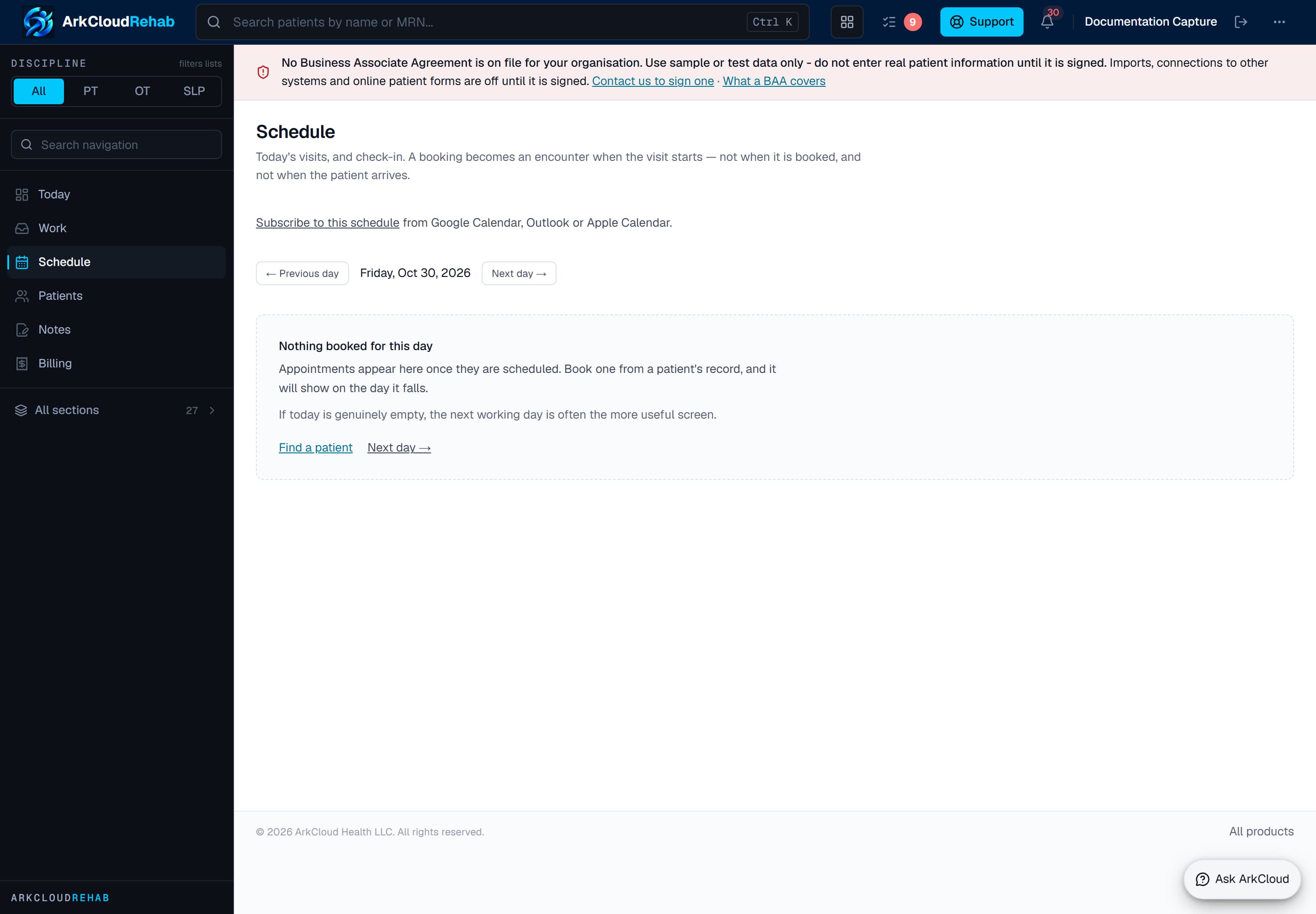
Real screen · synthetic data. The Rehab schedule before any visits are booked. In use, each row has Check in, No-show, Reschedule and Cancel, then Start visit and Complete as the visit moves on.
Empty state. Captured in a demonstration organisation with no records of this type yet. The controls, columns and filters are the ones a populated screen uses.
/rehab/schedule
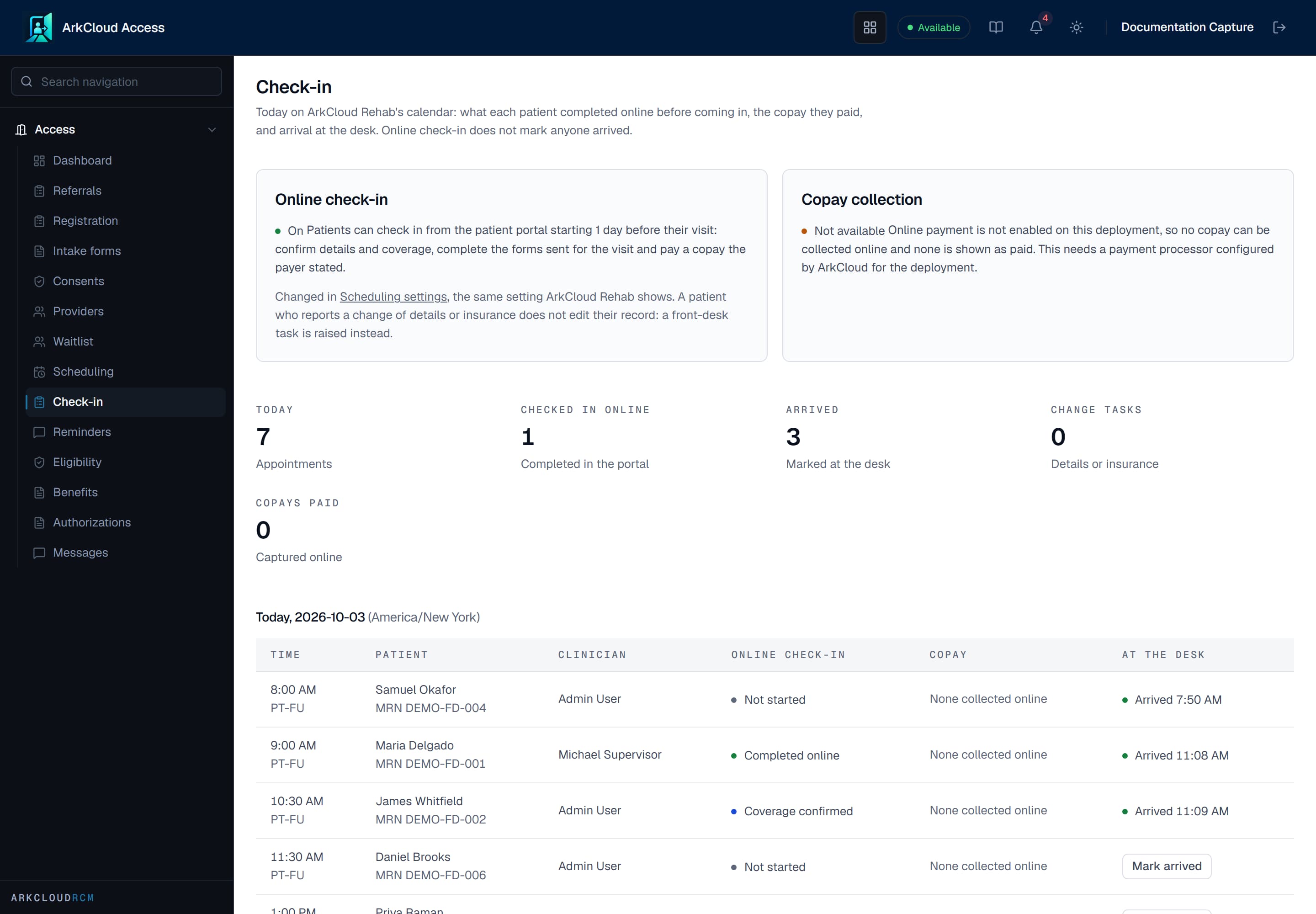
Real screen · synthetic data. The Access check-in board: today's visits on the Rehab schedule, what each patient completed online, and Mark arrived.
/access/check-in
What checking in records
| Field or control | What it means |
|---|---|
| Visit status | Becomes Checked in, with the arrival time shown on the row. |
| Audit trail | Who checked the patient in, and when. |
| Online check-in | Shown beside the status when the patient used it - for example 'Checked in online 08:42', or that they reported a change of insurance or contact details. A reported change is a task for the front desk; it does not change the record. |
Checking in does not open the visit record, take a copay, or change anything clinical. Any Rehab role - Agent, Supervisor or Admin - can check a patient in.
The therapist is not alerted
A clinician sees arrivals by looking, and the page shows what was true when it was opened:
- Outpatient → Schedule - the Status column and the Checked in count. The schedule shows every clinician's visits for the day; there is no “my patients only” filter, so use the Provider column. Reload the page to see new arrivals.
- Overview → Dashboard - today's visits with their status.
Agree a habit at your clinic: the therapist reloads the schedule between patients, or the front desk lets the therapist know in person or by phone.
The one alert that does exist: urgent intake answers
If a patient's intake answer screens positive for an urgent symptom - for example new bladder or bowel problems - the attending clinician, the person who started the intake, and supervisors and administrators get an in-app alert, and the patient's chart shows that an urgent intake answer has not been acknowledged. The alert names no patient; it links to the intake review.
The screen is rule-based and can miss a concern phrased differently. It is not a substitute for the clinician reviewing the intake, and it is not triggered by checking in.
Start visit, Write note and Complete
- When the clinician is ready, press Start visit on the checked-in row. This opens the visit record and the status becomes In progress.
- A Write note link now appears under the patient's name, beside Open episode. It opens the episode at the clinical notes with this visit already chosen. It is not there before Start visit, and not for a visit booked without an episode.
- When the visit ends, press Complete. This records the service the visit was booked under, ready for billing once the note is signed.
Start visit and Complete are open to every Rehab role, so a clinic can choose whether the front desk or the clinician presses them. Writing and signing the note is the clinician's - see the outpatient clinic day.
What works today
| Capability | Status | What that means here |
|---|---|---|
| Checking a patient in at the desk | Available | Check in on the Rehab schedule, or Mark arrived on the Access check-in board, sets the visit to Checked in and records who did it and when. |
| Alerting the therapist when a patient arrives | Not available | Checking a patient in sends no notification, message or alert to the therapist, and the schedule does not refresh by itself. The therapist sees Checked in on the schedule or the dashboard when the page is opened or reloaded. |
| Urgent intake answer alert | Available | When a patient's intake answer screens positive for an urgent symptom, the attending clinician, the person who started the intake, and supervisors and administrators get an in-app alert. The screen is rule-based and can miss a concern phrased differently. |
| Start visit and the Write note link | Available | After check-in, Start visit on the schedule opens the visit record. Only then does the row show Write note, which opens the episode at the notes with that visit already chosen. |
| Online check-in before the visit (patient portal) | Available with configuration | The patient confirms details and insurance, completes the forms sent for the visit and checks in from the portal. It does not mark them arrived; the front desk still checks them in. Off by default.Requires: An administrator turns on 'Patients may check in online before a visit'. |
Troubleshooting
| Field or control | What it means |
|---|---|
| There is no Check in button | The visit is not Scheduled or Confirmed - it is already checked in, in progress, completed, cancelled or marked as a no-show. |
| The therapist cannot see that the patient has arrived | Their page was opened before check-in. Reload the schedule or dashboard. |
| There is no Write note link | The visit has not been started (press Start visit), or the appointment is not linked to an episode. Open the episode from the patient's chart instead. |
| The patient checked in online but is not showing as arrived | Expected. Online check-in never marks arrival. Press Check in when they are at the desk. |
| The patient says their insurance changed | The row says so. Update the coverage on the episode's billing setup; the patient's answer does not change it. |