
Role guide
Front desk guide
For front-desk and intake staff at an outpatient PT, OT or SLP clinic: the tasks you do in ArkCloud, which screen each one is on, what happens automatically afterwards, and where your part ends and the clinician's begins.
Written for: Front desk staff · Intake coordinators · Schedulers · Clinic administrators
Rehab or Access: which screen to use
Most front-desk work exists in two places. ArkCloud Rehab holds the patient record, the schedule and the episode, and is where a therapy clinic usually works. ArkCloud Access, where your organisation has it, is a front door over the same records - an action taken in Access is the same row Rehab shows, not a copy.
| Task | In ArkCloud Rehab | In ArkCloud Access | A therapy clinic usually uses |
|---|---|---|---|
| Register a new patient | Records and revenue → Patients → Add patient | Registration (then an administrator sends it to Rehab) | Rehab |
| Receive a referral | Overview → Referrals | Referrals (then an administrator sends it to Rehab) | Rehab |
| Upload a scanned or faxed document | The patient's chart → Documents → Add a document; or Overview → Outside records | None - use Rehab | Rehab |
| Book visits | An episode → Care team & billing → Visits; Outpatient → Schedule | Scheduling (online booking settings and new-patient requests) | Rehab |
| Check a patient in | Outpatient → Schedule → Check in | Check-in → Mark arrived | Either - the same check-in |
| Update address, phone, emergency contact | Patient's chart → Registration & admin → Registration details | None - use Rehab | Rehab |
| Resolve details clinicians flagged | Patient's chart → Registration & admin → All open flags | None - use Rehab | Rehab |
| Send intake and consent forms | Outpatient → Forms; patient's chart → Clinical history → Patient intake | Intake forms; Consents | Rehab |
| Record insurance, benefits and authorizations | The episode → Care team & billing → Coverage, visits and billing | Benefits; Authorizations; Eligibility | Rehab for coverage; Access for benefits and authorizations |
| Waitlist | Outpatient → Waitlist | Waitlist | Rehab (it can offer a freed slot) |
Your sign-in and permissions
There is no separate “front desk” role. Front-desk staff usually hold the Agent role, which opens both Rehab and Access and allows everything on this page except the administrator-only actions below.
Registering a new patient
ArkCloud Rehab → Records and revenue → Patients → Add patient
- Search by name or record number first, under Find existing. Most “new” patients are already on file.
- If they are not, choose Create new and enter first name, last name and date of birth, with email and mobile if you have them.
- Enter the medical record number, unless your organisation has ArkCloud assign numbers (the field then says optional).
- If ArkCloud shows a strong possible duplicate, check it. It refuses to create the record until you confirm this is a different person.
A patient referred in is usually registered by accepting the referral into care instead, which creates the record and the episode in one step - see below. Access's Registration queue is for clinics that collect registrations before a visit; it is not a patient record until an administrator sends it to Rehab.
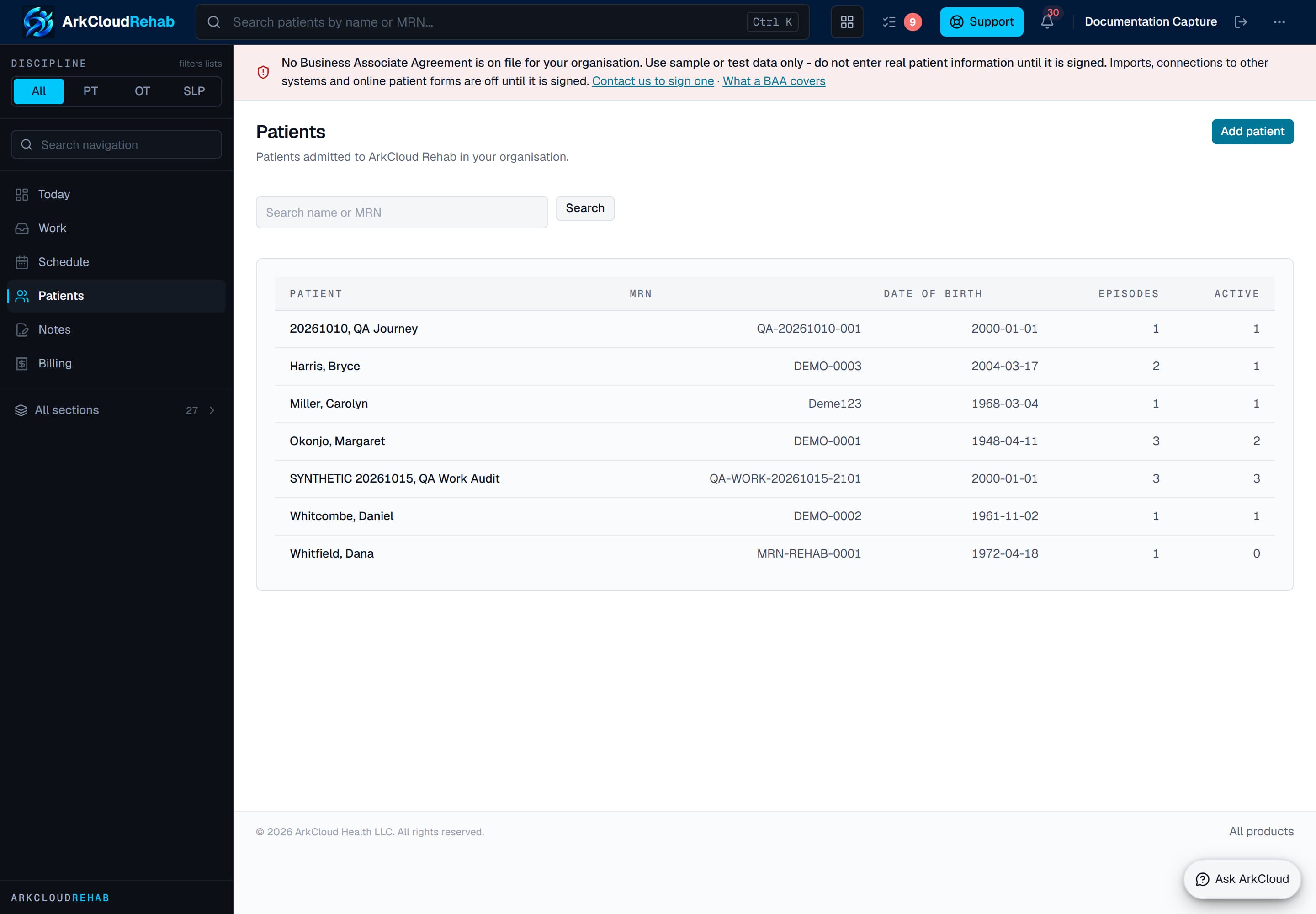
Real screen · synthetic data. The Rehab caseload, where Add patient starts a registration.
/rehab/patients
Receiving a referral
ArkCloud Rehab → Overview → Referrals
- Record the referral: first name, last name and date of birth are required; add the referring clinician and practice, the reason and the urgency as given.
- A faxed referral is typed in - there is no fax inbox. Upload the faxed pages too (next section).
- Triage it, or leave it for the clinical lead, as your clinic decides.
- Accept into care creates or links the patient and opens the episode. You choose an existing patient by searching, or give the record number for a new one, and a discipline must be set.
The referrer's diagnosis code is recorded as theirs and never copied onto the episode or used for billing. Details: Rehab referral intake · Access referrals.
Scanned and faxed documents
ArkCloud Rehab → the patient's chart → Documents → Add a document
Scan to PDF with your scanner's software, then open the patient's Documents tab and press Add a document. One-press templates fill in a physician referral, signed plan of care, insurance card, photo ID, signed consent or letter. If the patient is not yet known, upload from Overview → Outside records instead. Each upload is virus-scanned before anyone can open it. ArkCloud does not read the text of a scan.
You can also ask a named colleague to sign a document off as reviewed; they are not notified, so tell them. Full steps, accepted files and what sign-off means: Documents and scanning.
Scheduling
ArkCloud Rehab → an episode → Care team & billing → Coverage, visits and billing → Visits
Visits are booked from the patient's episode so every visit belongs to a course of care. Choose the service from the catalogue - that service is what is billed later - the clinician, the days and times, and the number of visits. A clash with the clinician's leave or other visits, or with the patient's other visits, is refused unless you give a reason.
Rescheduling, cancelling (you are asked whether the patient or the clinic cancelled) and no-shows are on the schedule row. Details: Rehab scheduling.
Check-in
ArkCloud Rehab → Outpatient → Schedule → Check in
Press Check in on the patient's row (or Mark arrived on Access's check-in board). The visit becomes Checked in, with the time. If the patient used online check-in and reported a change of insurance or contact details, the row says so - update the record yourself; their answer changes nothing.
Demographic and administrative updates
ArkCloud Rehab → the patient's chart → Registration & admin
The Registration & admin tab of the patient's chart holds the interpreter, preferred language and accessibility needs, administrative notes, the waitlist, and the collapsible Registration details (identity, demographics, contact details, emergency contacts and guardians, duplicates and merges). An interpreter or accessibility need you record shows as one line at the top of the chart and of every episode view, so the therapist sees it before the visit. Once staff functions are assigned, only registration staff and administrators can change them; a clinician who tries is told to ask the front desk. Patients cannot change their own details or insurance - anything they report in the portal becomes a task for you.
Details clinicians flag for you
Clinicians read registration details but do not edit them. When a clinician who is assigned the clinical staff function (and not registration) notices a wrong or missing detail, they press Flag a detail for the front desk on the patient's chart, choose what needs checking - name or date of birth, phone, email or address, insurance, interpreter or language, accessibility needs, scheduling preference, referral or paperwork, or something else - and may add a short note.
- You are not notified. Open flags show on the patient's Registration & admin tab. Its All open flags link (shown to registration staff) opens the clinic-wide list, oldest first, with each patient's name. That list is not in the Rehab menu - bookmark it and check it as part of your day.
- Open the patient from the list and fix the detail on the Registration & admin tab.
- Press Mark resolved. Only registration staff and administrators can resolve a flag; it then leaves both lists.
| Capability | Status | What that means here |
|---|---|---|
| Front-desk flags, interpreter and accessibility line, front-desk-only notes | Available with configuration | A clinician flags a wrong or missing detail (for example insurance or an interpreter need) for the front desk; registration staff see open flags on the patient's Registration & admin tab and on a clinic-wide list, fix the detail and mark the flag resolved. Nobody is notified when a flag is raised. Interpreter and accessibility needs show as one line on the chart and the episode, and administrative notes are kept by registration staff.Requires: An administrator assigns staff functions. The flag control appears only for staff assigned the clinical function without the registration function; until functions are assigned, everyone can edit registration details directly and nobody sees it. |
| Registration and clinical staff functions | Available with configuration | An administrator can mark each person as registration staff, clinical staff or both. Registration staff maintain demographics, contact, insurance and consent; clinical staff review clinical intake. Someone with no function assigned can do both.Requires: An administrator assigns functions under Rehab settings, Staff functions. |
Intake completion
- Forms: from Outpatient → Forms, send the clinic's intake or consent form. The patient is emailed a private link if they have agreed to email; otherwise copy the link, which is shown once.
- Health questionnaire: on the patient's chart, open Clinical history → Patient intake. Ask the patient to complete it in the portal, or start it on a clinic tablet with a single-use link or QR code valid for 30 minutes.
- Review your part: contact changes, emergency contacts and permission to email and text are applied by registration staff. Medicines, allergies, history and symptoms are reviewed by clinicians - leave those for them.
Details: intake and consent forms.
Insurance information
- Coverage: on the patient's episode, open Care team & billing → Coverage, visits and billing and record the primary (and any secondary) coverage, or self-pay.
- Benefits: call the payer or use its portal, then record what they said, how and the reference, under Access → Benefits. This supplies the copay and counts visits against plan limits.
- Prior authorization: record the request and the approval (visits, days or units) under Access → Authorizations. Nothing is sent to the payer for you.
- Eligibility: electronic checks are not connected on the hosted service, so verify by phone or payer portal and record it as benefits.
| Capability | Status | What that means here |
|---|---|---|
| Recording insurance coverage | Available | Staff record the patient's coverage (primary, optional secondary, or self-pay) in the episode's billing setup. Patients cannot edit coverage; a reported change becomes a task. |
| Benefits verification by phone or payer portal | Available | Staff record what the payer said, how and with what reference. It supplies the copay and counts visits against plan limits; it is not an electronic eligibility answer. |
| Prior authorization tracking | Available | Requests and approvals are tracked by hand in visits, days or units. Nothing is sent to the payer electronically. A missing authorization never blocks care; it holds the charge. |
| Electronic insurance eligibility checks | Needs an external connection | Built as a real payer inquiry, never simulated into an answer. Not connected on the hosted service today, so no eligibility answer is returned.Requires: Availity credentials, or a clearinghouse mailbox, configured for the deployment. |
Details: eligibility and prior authorization.
Handing off to clinical staff
The handoff is through shared records, not messages. When you have done your part, the clinician finds it waiting:
| Field or control | What it means |
|---|---|
| Patient has arrived | Checked in on the schedule and dashboard - after the clinician reloads. |
| Referral accepted | The patient's episode exists, with the referral on it. |
| Documents uploaded | The document is on the patient's Documents tab and is listed as awaiting clinical review under Outside records. |
| Intake completed | The clinical items wait in the patient's intake review. An urgent answer also alerts the attending clinician, supervisors and administrators. |
Anything else - a precaution you noticed on a fax, a patient who mentions a fall at the desk - tell the clinician directly. ArkCloud has no handoff message for it. Front-desk flags go the other way: from clinicians to you (see Details clinicians flag for you).
What the front desk does not do
What works today
| Capability | Status | What that means here |
|---|---|---|
| Registering a patient (Rehab) | Available | Add patient searches for an existing record first, then creates one with name, date of birth and record number. A strong possible duplicate is refused unless someone confirms it. |
| Referral intake and acceptance into care (Rehab) | Available | Staff record a referral, triage it, and accept it into care. Accepting creates or links the patient and opens the episode in one step; an existing patient is matched only by exact record number or by a person choosing them. |
| Send to Rehab (referral, registration or waitlist entry) | Available | An Access administrator sends the record to Rehab after confirming how the name splits into first and last and the date of birth. Nothing is re-typed; nothing is guessed.Requires: An Access administrator, and an organisation that also has ArkCloud Rehab. |
| Uploading scanned and electronic documents (outside records) | Available | Any Rehab user can upload a PDF, scanned image (JPEG, PNG, TIFF), C-CDA or FHIR bundle file from Outside records or from a patient's chart, naming the document type and the sending organisation. |
| Booking visits and courses of visits | Available | Staff book single visits or recurring courses against an episode, from the service catalogue, on each clinician's availability. Clashes with leave or other visits are refused unless a reason is given. |
| Checking a patient in at the desk | Available | Check in on the Rehab schedule, or Mark arrived on the Access check-in board, sets the visit to Checked in and records who did it and when. |
| Alerting the therapist when a patient arrives | Not available | Checking a patient in sends no notification, message or alert to the therapist, and the schedule does not refresh by itself. The therapist sees Checked in on the schedule or the dashboard when the page is opened or reloaded. |
| Demographic, contact and emergency-contact updates | Available | Edited on the patient's chart under Registration details. Once an administrator assigns staff functions, only registration staff (and administrators) can change these details; a patient's report of a change becomes a task, never an edit. |
| Registration and clinical staff functions | Available with configuration | An administrator can mark each person as registration staff, clinical staff or both. Registration staff maintain demographics, contact, insurance and consent; clinical staff review clinical intake. Someone with no function assigned can do both.Requires: An administrator assigns functions under Rehab settings, Staff functions. |
| Intake and consent forms sent by link | Available | Staff send a form as a private link. The patient is emailed the link when they have agreed to email; otherwise staff pass it on. Signatures are a typed name; drawn signatures are not available. |
| Reviewing a patient's intake answers | Available | Every answer arrives as patient-reported and changes nothing until a person accepts, confirms, corrects or disputes it. Contact and consent items go to registration staff; history, medicines, allergies and symptoms go to clinicians. |
| Appointment reminders (email and text) | Available with configuration | Reminders go by email or text for visits on the Rehab schedule once an administrator turns them on. Texts go only to patients with recorded text consent; a STOP reply is recorded as an opt-out. Carrier registration for US text messages was still being completed in late October 2026, so texts may be filtered.Requires: An administrator turns reminders on and chooses the channel. Patients need recorded email or text consent. |
| Handoff from the front desk to clinical staff | Partially available | The handoff happens through shared records: the visit's status on the schedule, the episode, outside records waiting for clinical review, and intake answers waiting for review. There is no handoff message or alert, apart from the urgent intake alert. |
| Front-desk flags, interpreter and accessibility line, front-desk-only notes | Available with configuration | A clinician flags a wrong or missing detail (for example insurance or an interpreter need) for the front desk; registration staff see open flags on the patient's Registration & admin tab and on a clinic-wide list, fix the detail and mark the flag resolved. Nobody is notified when a flag is raised. Interpreter and accessibility needs show as one line on the chart and the episode, and administrative notes are kept by registration staff.Requires: An administrator assigns staff functions. The flag control appears only for staff assigned the clinical function without the registration function; until functions are assigned, everyone can edit registration details directly and nobody sees it. |
| Patient Documents tab, upload templates and document sign-off | Available | On a patient's Documents tab, Add a document offers one-press templates for a physician referral, signed plan of care, insurance card, photo ID, signed consent and letter, which fill in the category, title and how it arrived. Any filed document can be sent to a named colleague to sign off as reviewed. |
Troubleshooting
| Field or control | What it means |
|---|---|
| "Registration details are maintained by registration staff" | You are not assigned the registration staff function. Ask an administrator to add it under Rehab settings → Staff functions. |
| There is no Send to Rehab button in Access | Only administrators can send. Ask one, or record the referral or patient directly in Rehab. |
| Add patient refuses to create the record | A strong possible duplicate was found. Open the suggested patient; if it is a different person, confirm and create. |
| Access does not appear on my launcher | Your organisation may not have ArkCloud Access. Use the Rehab screens - they do the same work. |
| I cannot find the list of flagged details | It is not in the Rehab menu. Open any patient's Registration & admin tab and use All open flags (registration staff and administrators see the link). |
| A patient says they never got the form | The email goes only to patients who agreed to email. Send it again (the old link stops working) and pass the new link on yourself. |