
ArkCloud Rehab
Patient Home and the chart
A patient's information lives on two pages: the patient chart (Patient Home), which belongs to the person, and the episode page, which belongs to one course of care. Both are split into tabs, so you open the part you came for instead of scrolling past everything else.
Written for: Rehabilitation clinicians · Front desk staff · Clinical supervisors
Opening a patient
- Press Ctrl+K (or /) anywhere in Rehab and type at least two characters of a name or MRN. Each result shows name, date of birth, MRN and whether there is an active episode.
- Or go to Records and revenue → Patients and search the caseload. Only patients admitted to Rehab are listed.
- Opening a chart makes that patient the active patient. If another patient is already active, you are asked before switching. The chart opens on the Home tab.
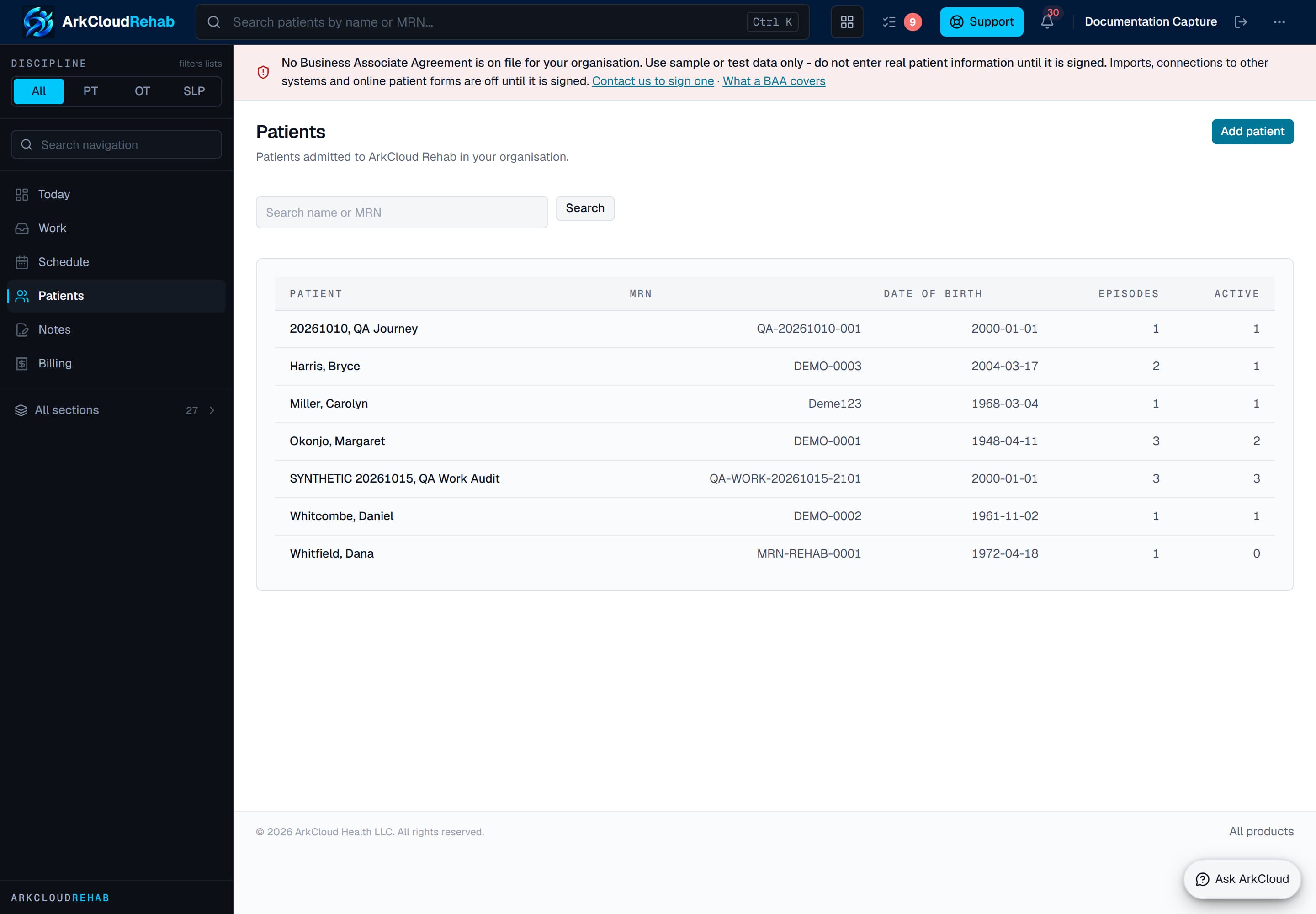
The patient list, where a chart is opened from. Real screen · synthetic data.
/rehab/patients
The Patient Home tabs
ArkCloud Rehab → Records and revenue → Patients → a patient
Above the tabs, on every tab, you see the patient's name, the allergy banner, a one-line note of any interpreter or accessibility need, and the precautions. The tabs are ordinary links, so they work with the keyboard and the browser's back button, and a tab can be bookmarked.
| Field or control | What it means |
|---|---|
| Home | The Rehab record (MRN, date of birth, date added to Rehab, episode counts) and Episodes of care, with Start episode and the care summary link. Each active episode has one-press links - Evaluation, Daily note, Progress note and All notes - that open that episode's Notes view with the note type chosen. |
| Clinical history | Allergy verification with the link to Patient intake, outside records received about the patient, and the allergy, medication and problem lists. |
| Documents | Everything filed to the chart - referrals, signed plans of care, scans, insurance cards, consents, letters - grouped by category, with review sign-offs, plus completed patient forms. See scanned documents and the Documents tab. |
| Timeline | The Health timeline: everything recorded and received, in date order, filterable by kind. |
| Registration & admin | Interpreter, language and accessibility; details flagged for the front desk; administrative notes; the waitlist; and the collapsed Registration details (identity, demographics, contact, emergency contacts and guardians, duplicates and merges). Registration staff edit these; everyone else reads them and can flag a correction. See front-desk flags. |
| Capability | Status | What that means here |
|---|---|---|
| Patient Home with tabs | Available | The patient chart is split into Home (Rehab record and episodes of care, with one-press links to start a note), Clinical history (allergy verification, outside records, problems and medications), Documents, Timeline, and Registration & admin. Allergies and precautions stay above the tabs. |
| Patient chart | Available | One page per patient in five tabs - Home, Clinical history, Documents, Timeline, and Registration & admin - with allergies and precautions shown above the tabs on every view. |
| Health timeline | Available | Everything recorded for the patient and received from outside organisations in one date order, filterable by visits and notes, diagnoses, medications and allergies, precautions, results, outside documents and referrals. |
The episode views
Patient Home → Home → Episodes of care → an episode
Most clinical work happens on the episode page. It opens on Overview; arriving from a scheduled visit opens Notes for that visit. The patient's name, allergies, precautions and AI agreement status stay at the top of every view. The Notes tab shows a count when the episode has unsigned notes.
| Field or control | What it means |
|---|---|
| Overview | This visit first: today's or the next appointment and one next action - resume your open note for it, start the evaluation, or write the visit note. Then one list of the episode's notes (type, visit number and service date, status, author, last edited; Resume on your own drafts), what the record holds before this visit, counts that open their view, a folded menu to write another kind of note, anything that needs attention, and the episode status. |
| Notes | Clinical documentation: the New document menu, the visit picker and every note, newest first. Below it, Share with an outside provider (see physician communication - no sending channel is connected today). |
| Evaluation | Clinical context with the referral the episode came from, the evaluation checklist (it remembers whether you left it open or closed), evaluation domains for the discipline, anatomical findings and mobility. |
| Goals & outcomes | Outcome scores and measure suggestions, functional status, assessments, progress against baseline, the treatment plan, goals and the home exercise programme. |
| Care team & billing | Care coordination, care setting and step-down, and Coverage, visits and billing (insurance, authorizations, benefits, level of care, visits, services and billing, financial outcome). |
| History | The episode timeline and every recorded change, newest first. |
An older link or bookmark that pointed at a section of the former single-page episode (for example the goals or the anatomy section) opens the view that now holds that section.
| Capability | Status | What that means here |
|---|---|---|
| Episode page in views | Available | The episode page opens in six views: Overview, Notes, Evaluation, Goals & outcomes, Care team & billing, and History. Each shows only its own panels; allergies, precautions and the AI agreement status stay on every view. |
Moving between the chart and an episode
- On Home, press Daily note (or Evaluation, Progress note) beside an active episode to go straight to that episode's Notes view with the note type chosen. Use All notes to open the Notes view without choosing.
- On the episode, the patient's name at the top links back to Patient Home.
- On the episode Overview, the counts under In this episode open the Evaluation or Goals & outcomes view, and a draft or signed note opens on the Notes view.
Where to find each thing
| Field or control | What it means |
|---|---|
| Current episodes | Patient Home → Home → Episodes of care. Also Today → Recent episodes, and Records and revenue → Episodes for the whole caseload. |
| Previous notes | Episode → Notes: chips per note type (drafts, signed, latest) and every note newest first. Across episodes: Patient Home → Timeline → Visits and notes. Unsigned notes across the organisation: Records and revenue → Notes. |
| Referrals | Episode → Evaluation → Clinical context shows the referral the episode came from. Referral paperwork filed as a document is on Patient Home → Documents. The referral worklist is Overview → Referrals. |
| Scanned and outside documents | Patient Home → Documents for everything filed to the chart; Patient Home → Clinical history for outside records and what clinicians accepted from them. See outside records. |
| Treatment history | Episode → History: visits, notes started, signed, co-signed and amended, goals, plan of care, home programme, charges and claims, plus every recorded change. Across disciplines: the care summary link on Patient Home. |
| Goals | Episode → Goals & outcomes → Treatment plan → goals, with baseline, target, date and goal history. |
| Outcome measures | Episode → Goals & outcomes: scores you entered for instruments your clinic approved, first and latest side by side. See outcome measures. |
| Appointments | Today → Today's visits, and Outpatient → Schedule for the day view. Book a course of visits from Episode → Care team & billing → Coverage, visits and billing → Visits. Patient Home has no list of a patient's upcoming appointments. |
| Intake information | Patient Home → Clinical history → Patient intake (the link beside allergy status shows how many answers wait for review). |
| Interpreter and accessibility | One line above the tabs on Patient Home and on every episode view when something is recorded; the full detail is on Patient Home → Registration & admin. |
Limits
- The tabs change where things are shown, not what is recorded or who may see it.
- The Evaluation quick link chooses the evaluation only when the episode does not already have one; otherwise the Notes view opens with the first note type the episode can take.
- Patient Home has no list of a patient's upcoming appointments.