
Getting started
Start here: front desk
Your first day at the front desk: how to sign in, which screens you use every day, and the steps ArkCloud leaves to you.
Written for: Front desk and patient access staff · Schedulers
First sign-in
- Your administrator creates your account. Sign in with your email address and password (Signing in).
- If your organisation requires multi-factor authentication for everyone, you are asked to set it up now (Multi-factor authentication).
- Choose where you work: ArkCloud Access if your clinic uses it, or ArkCloud Rehab. Both show the same patients and the same schedule. On the launcher, use Open … automatically so you go straight there next time.
What to check on day one
| Field or control | What it means |
|---|---|
| You can edit registration details | Open a sample patient and try to edit the address. If you are refused, ask your administrator to give you the Registration staff function. Front desk staff are normally Agents with Registration. |
| You can see the schedule | Open the schedule and confirm you see today's clinicians and appointments. |
| Which steps are connected | Ask your administrator whether eligibility checks, appointment reminders and card payments are connected for your clinic. Until they are, you do those by phone, by hand or outside ArkCloud. See What works today. |
The screens you use every day
| Field or control | What it means |
|---|---|
| Referrals | Enter a referral and convert it: that creates the patient and an episode of care in one step. Matching to an existing patient is your choice, by record number or by picking the patient. In Access, sending a referral on to Rehab is an administrator action. See Rehab referrals and Access referrals. |
| Registration | Add or update the patient's details, contact, emergency contacts, interpreter and accessibility needs, insurance and communication consent, on the Registration & admin tab of the patient's chart. See The patient's chart and Access registration. |
| Details clinicians flag | Once staff functions are assigned, clinicians flag a wrong or missing detail for the front desk instead of editing it. You are not notified: open flags show on the patient's Registration & admin tab, whose All open flags link opens the clinic-wide list (it is not in the menu - bookmark it). Fix the detail, then Mark resolved. See front-desk flags. |
| Documents | File scanned referrals, signed plans of care, insurance cards, ID and consents on the patient's Documents tab with Add a document. See Documents and scanning. |
| Benefits and authorizations | Record what the payer told you: visits allowed, copay, authorization number and dates. These are entered by hand; ArkCloud then counts visits used against the authorization. |
| Scheduling | Book from the services catalogue so each visit carries the right service. See Scheduling. |
| Check-in | Use Check in on the patient's row in the Rehab schedule, or Mark arrived on the Access check-in board. See Checking a patient in. |
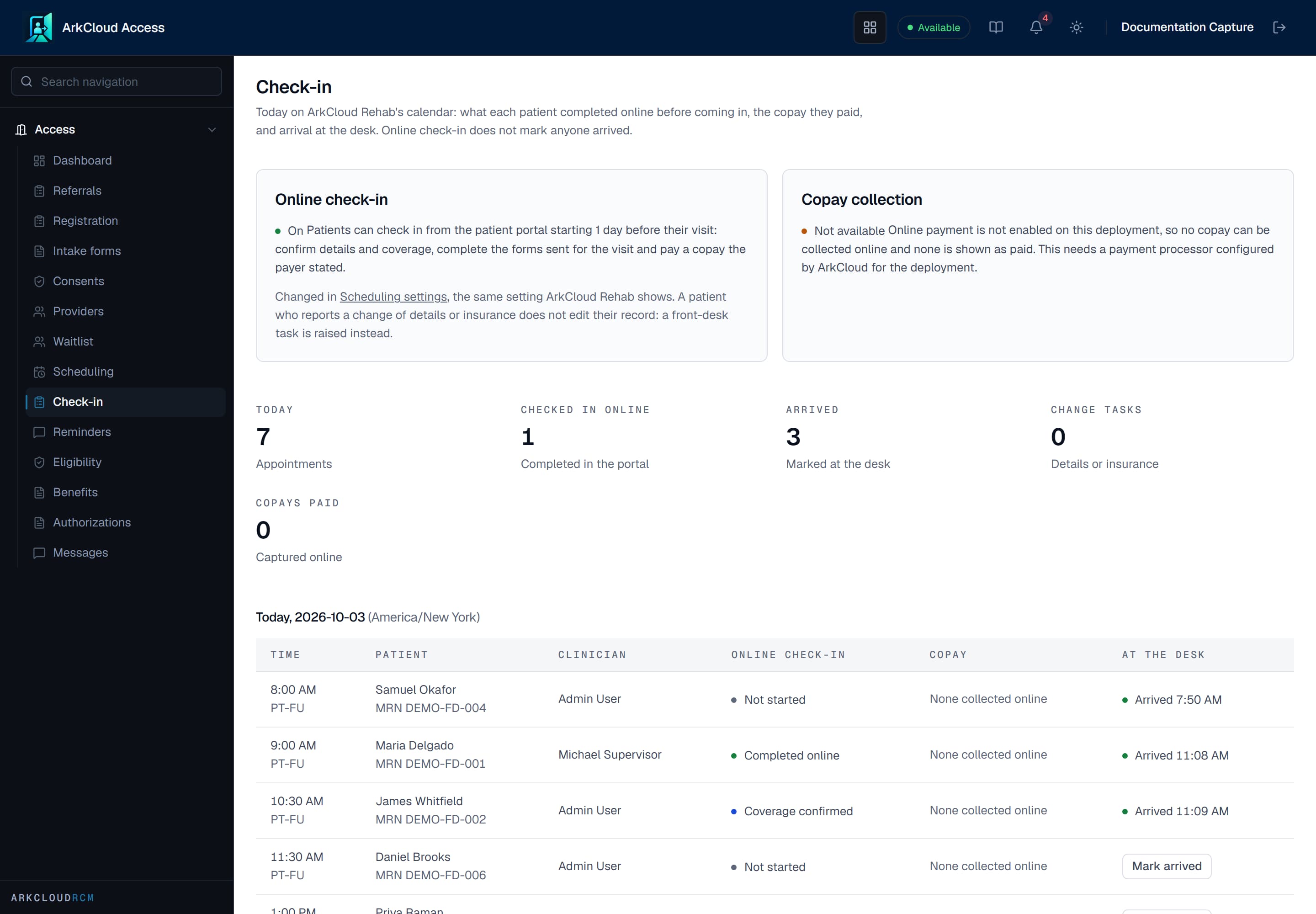
Real screen · synthetic data. Today's arrivals in ArkCloud Access, with online check-in progress, copay status and Mark arrived.
/access/check-in
What ArkCloud does not do for you
- Insurance details, benefits and authorizations are typed in from what the payer tells you.
- A faxed or scanned referral is entered by hand or uploaded; there is no fax receiving.
- Answers a patient gives in online check-in arrive as tasks for staff to review, not as changes to the record.
- A flag a clinician raises for the front desk, and a document sign-off a colleague asks of you, send no notification; check the lists yourself.
Patient search in the Rehab headerAvailable
From any Rehab screen, search the caseload and open a patient's chart. Results show name, date of birth, record number and whether there is an active episode.