
Getting started
Navigating a workspace
Every ArkCloud application shares one shell, so learning it once covers all of them. This page explains each part of it and why two people in the same organisation can see different navigation.
Written for: All users · New users during onboarding · Support staff
The workspace shell
Whichever application you open, the layout is the same: a navigation sidebar on the left, a header across the top carrying the application switcher and account actions, and the work itself in the middle.
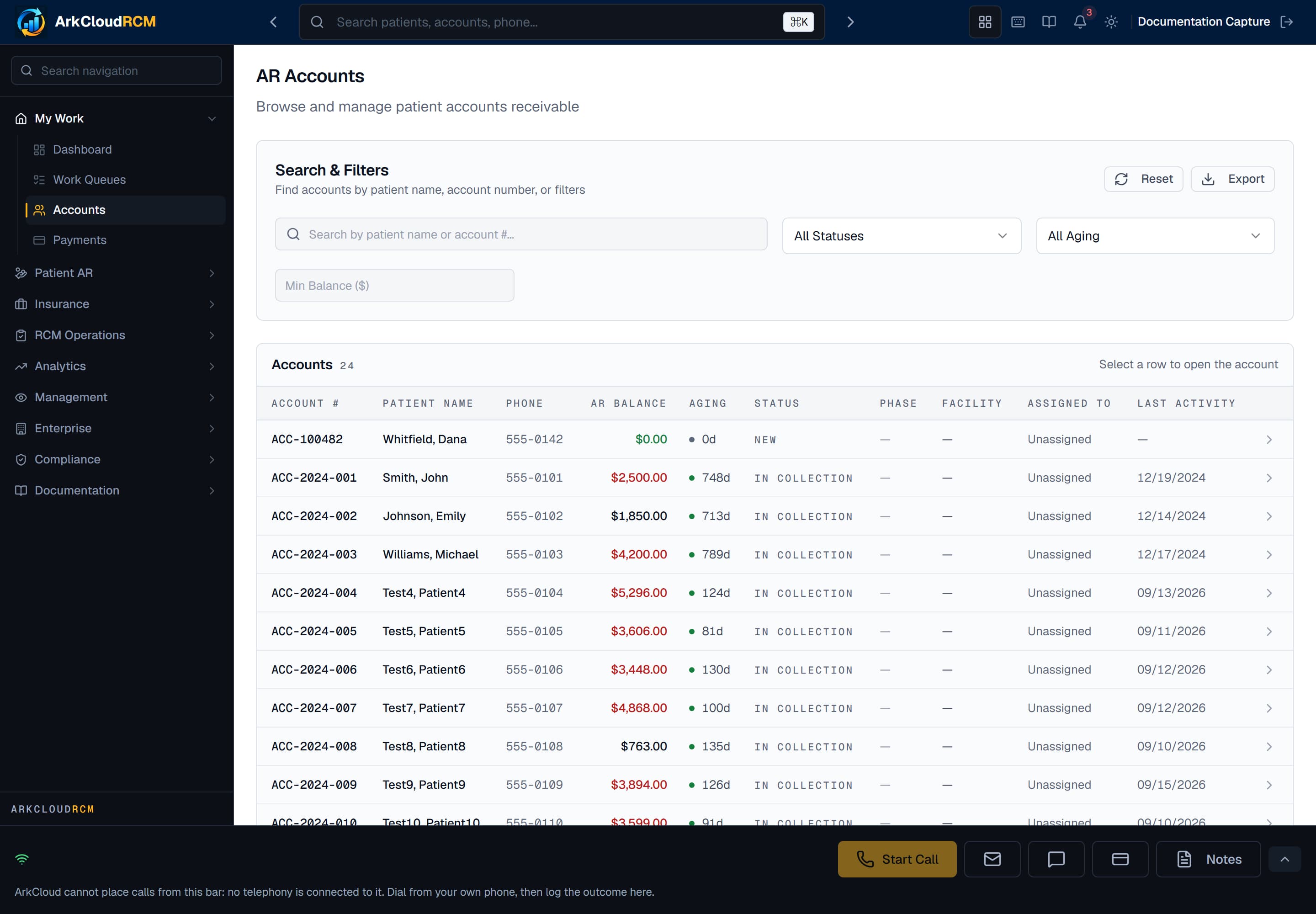
Real screen · synthetic data. ArkCloud RCM, showing the shell every application shares. The sidebar groups destinations by the kind of work they support; the header carries global search, the theme control and the account menu. Only the centre column changes between applications.
/dashboard/ar/accounts
| Field or control | What it means |
|---|---|
| Sidebar | The application's destinations, grouped by the kind of work. Groups expand and collapse, and the current page is marked. |
| Search navigation | Filters the sidebar itself. Present in ArkCloud RCM, which has considerably more destinations than fit on one screen. |
| Header search (RCM) | The search field in the RCM header searches billing records - patients, accounts, phone numbers - rather than navigation. |
| Patient search (Rehab) | The search field in the Rehab header finds a patient in the caseload by name or record number and opens their chart. Press Ctrl K (or / when you are not typing in a field) to jump to it. Results show date of birth and whether there is an active episode, never balances. |
| Header actions | Application switcher, documentation, notifications, light and dark theme, and sign out. |
Moving between applications
Any workspace → application switcher (grid icon) → choose an application
Switching does not sign you out and does not change who you are. You remain in the same organisation with the same role; only the application changes.
Some shared destinations - account settings, users, security - are reached from inside whichever application you are in, and keep that application's header and colour. They act on your account, so a change made from Rehab applies in RCM too.
On a phone
Below tablet width the sidebar collapses behind a menu control in the header, and tables become stacked cards so that rows stay readable without sideways scrolling.
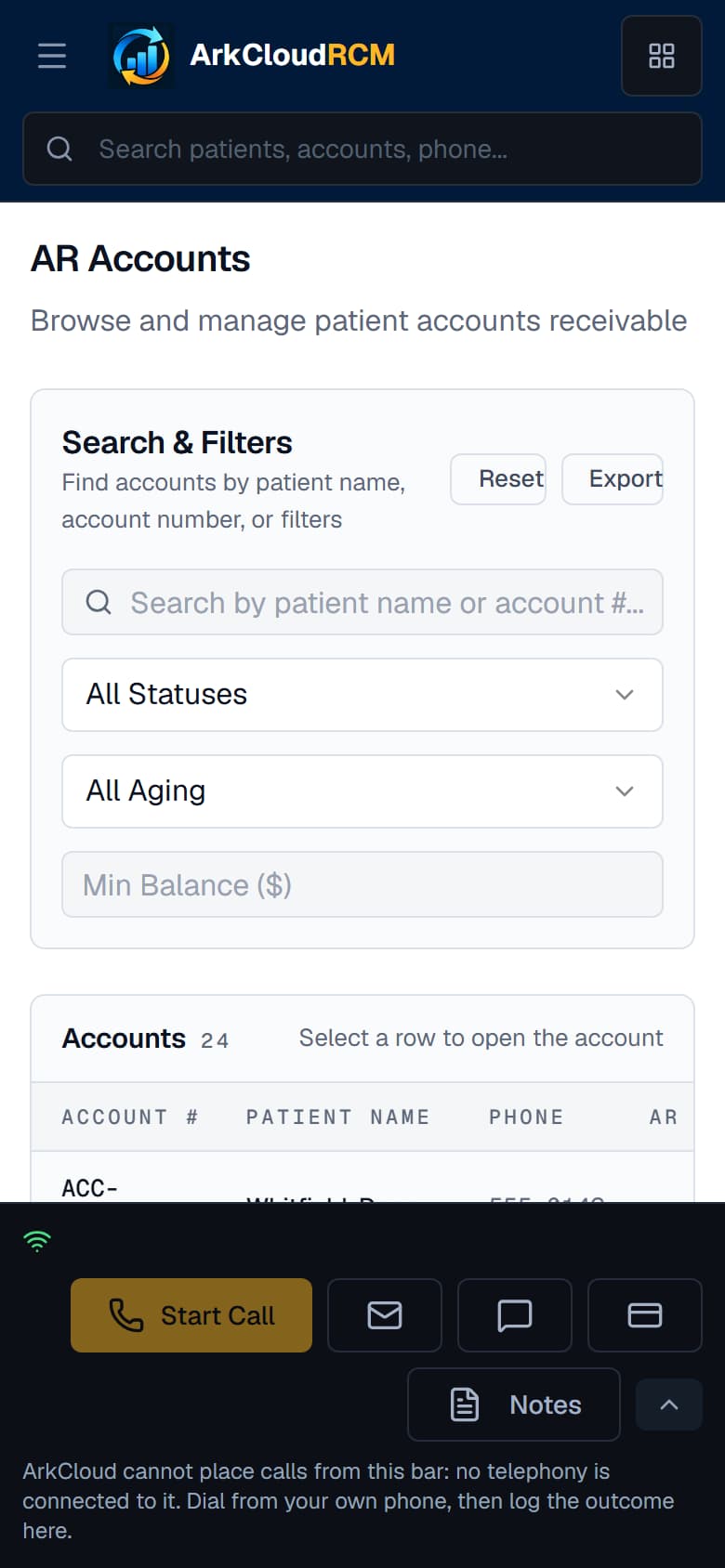
Real screen · synthetic data. The same AR Accounts screen at 390 pixels wide. Each account becomes a card carrying the same fields the desktop table shows in columns, so nothing is lost - it is reshaped rather than reduced.
/dashboard/ar/accounts