
Getting started
Signing in
Every ArkCloud application is reached through one sign-in. This page covers both ways of signing in, what each field does, and how to tell a refused password from a refused attempt.
Written for: All users · Support staff · Administrators
Before you start
- An ArkCloud account that an administrator in your organisation has created, with status Active. An inactive or locked account is refused at sign-in.
- A current browser. ArkCloud is a web application and installs nothing.
- Your email address and password. Before relying on Google, read Signing in with Google below.
How to get there
arkcloudhealth.com → Sign in
Any protected page also redirects here and remembers where you were going, so a bookmark deep inside an application still works - you sign in and arrive at the page you asked for rather than at the launcher.
Signing in with a password
- Enter the email address your account was created with.
- Enter your password.
- Optionally select Remember me to keep the session on this device for longer. Leave it clear on a shared or public computer.
- Select Sign in.
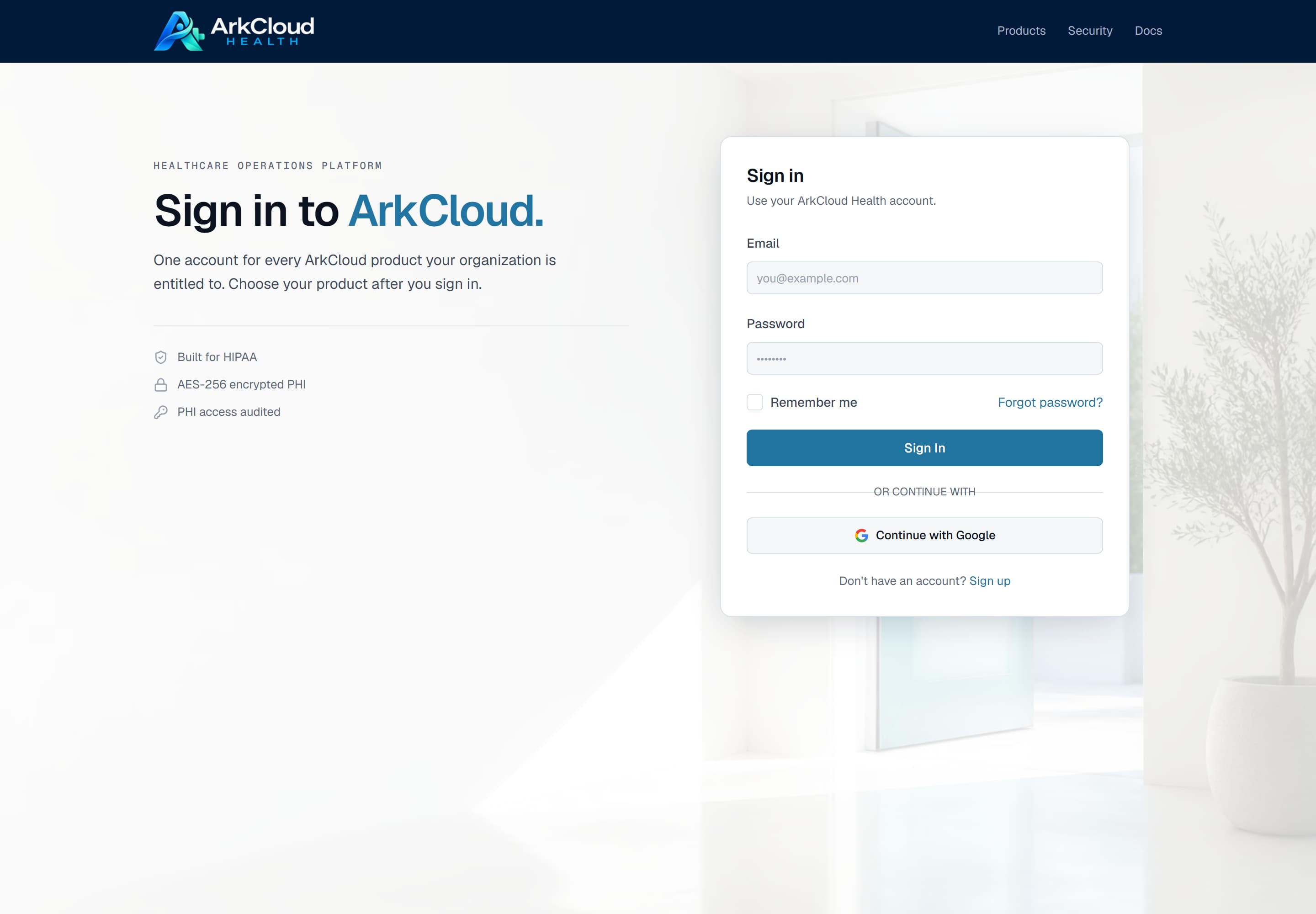
Real screen · synthetic data. The sign-in screen: email, password, Remember me, Forgot password, and Continue with Google. The Google button is always shown; whether it can sign you in is decided by the server.
/auth/sign-in
| Field or control | What it means |
|---|---|
| Email address | The address your account was created with. It also determines which organisation you are signed in to. |
| Password | Set by you. If you have forgotten it, use Forgot password - an administrator cannot read your password and can only issue a reset. |
| Remember me | Without it, a session ends 8 hours after sign-in. With it, the session can last up to 12 hours on this device - a full shift. Administrators always get 8 hours, ticked or not. Leave it clear on a shared computer. |
| Continue with Google | Single sign-on with a Google account. See the next section for who can use it. |
Expected result: you arrive at the application launcher, or at the page you were originally trying to open. If you have set up multi-factor authentication you are asked for a code first, and administrators (or everyone, if your organisation requires it) are asked to enrol first. This applies to the launcher, onboarding, subscription billing and the operator console as well as to the applications; until it is done the session is treated as signed out- see multi-factor authentication.
Signing in with Google
Continue with Google hands sign-in to Google and returns you to ArkCloud. You do not use an ArkCloud password on that path.
Sign in with GoogleNot independently verified
The Continue with Google button is switched on. Which Google accounts it admits depends on how ArkCloud's Google sign-in is set up, and that has not been confirmed for customer accounts. Plan on email and password, and ask ArkCloud before rolling out Google sign-in.
Where Google sign-in admits your Google account, what happens depends on whether you already have an ArkCloud account:
| Field or control | What it means |
|---|---|
| You already have an ArkCloud account | Signing in with the same email address signs you in to that account, in its organisation. |
| No account, and your email domain is verified for an organisation | You join that organisation as an Agent. If your organisation wants every account created deliberately by an administrator, ask ArkCloud to switch this off during set-up. |
| No account, and no verified domain | You are asked to create a new organisation of your own, with a trial - the same as signing up with an email address. You do not join anyone else's organisation. See Demo, trial and production access. |
Other sign-in methods:
| Capability | Status | What that means here |
|---|---|---|
| Sign in with email and password | Available | Every account can sign in with its email address and password. Forgotten passwords are reset by email, and ten wrong passwords in a row lock the account for 15 minutes. |
| Sign in with Microsoft | Not available | There is no Microsoft sign-in on the ArkCloud sign-in screen. |
| SAML single sign-on (Okta, OneLogin and similar) | Not available | SAML sign-in is switched off and every SAML sign-in is refused. Okta and OneLogin are not offered. |
Troubleshooting
| Field or control | What it means |
|---|---|
| Invalid email or password. | The email or password is wrong. Check for a different work address before resetting. |
| Too many login attempts. Please try again later. | A rate limit, not a wrong password. Attempts are counted per email address from one network (10 in 15 minutes) and per network address (50 in 15 minutes). Wait, then try again. |
| Account temporarily locked after too many failed attempts. | Ten consecutive wrong passwords lock the account for 15 minutes. It unlocks on its own; an administrator can unlock it sooner from Administration → Users. |
| Repeated failures from an office | Everyone behind one office connection shares the per-network limit of 50 attempts in 15 minutes, so a burst of failures can briefly refuse a colleague whose password is correct. |
| Sent to multi-factor setup | Expected for administrator roles. Enrolment is required before any application opens. See multi-factor authentication. |
| Signed in, but no applications are offered | Your account is valid and your organisation has no application entitlement, or your role is not admitted to the ones it has. See roles and permissions. |
| Account is deactivated | Only an administrator in your organisation can reactivate it. Status is re-checked on every request, so a deactivation takes effect immediately. |