
Patient portal
Payment plans
Where online payment is set up, a patient who cannot settle a balance in one payment can split it into instalments from the portal, and see what each instalment would be before agreeing.
Written for: Patients · Billing teams · Patient financial services
When a plan is offered
A Need more time to pay? panel with a Set Up Plan button appears on the account summary only when all of these are true:
- the account is marked eligible for a payment plan in ArkCloud RCM;
- it has no active or pending plan already;
- the access link gives full access (every link the product issues today does);
- online payment is set up - the deployment has a live payment processor and the organisation has connected its own Stripe account.
Setting up a plan
- Open your account from your link and confirm your date of birth.
- In the Need more time to pay? panel, select Set Up Plan.
- Choose the number of payments: 3, 6, 9, 12, 18 or 24.
- Choose a frequency - weekly, every two weeks, or monthly.
- Check the instalment shown under Your payment would be.
- Read the plan terms and tick I have read and agree to these payment plan terms. Confirm Payment Plan stays unavailable until you do.
- Select Confirm Payment Plan.
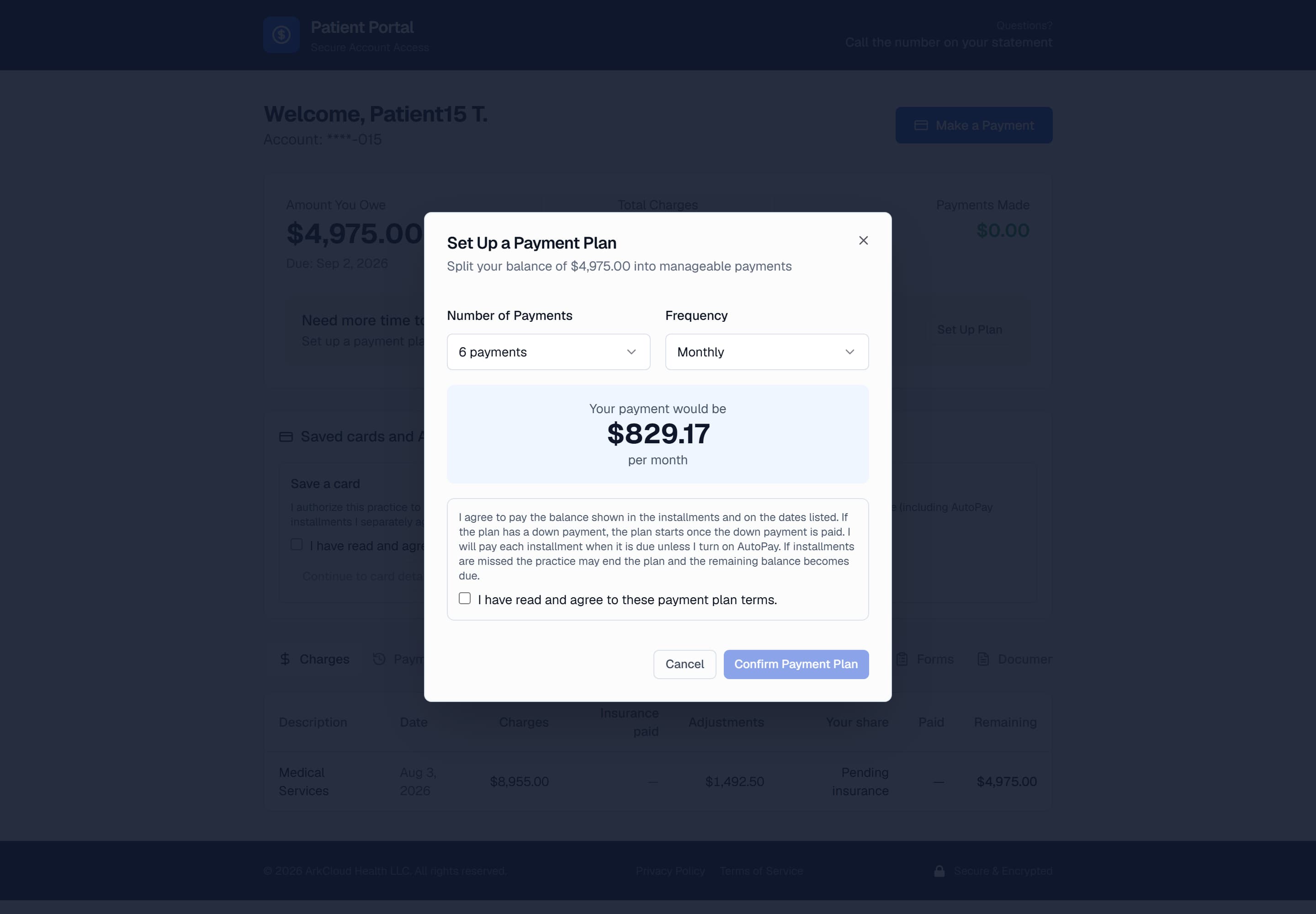
The plan dialog recalculates the instalment as the number of payments and the frequency change, so a patient sees what they are committing to. Nothing is agreed until the patient accepts the plan terms and chooses Confirm Payment Plan.
/portal/accounts/{access code}
| Field or control | What it means |
|---|---|
| Number of Payments | How many instalments the current balance is divided into. The organisation's maximum (24 unless set lower) and minimum instalment ($5 unless set higher) still apply. |
| Frequency | Weekly, every two weeks, or monthly. |
| Your payment would be | The current balance divided by the number of payments. Any rounding difference is added to the last instalment. |
| AutoPay | Not part of setting up the plan. The plan terms say the patient pays each instalment when it is due unless they turn on AutoPay, which is done afterwards from the Saved cards and AutoPay panel - see below. |
Turning on AutoPay. Once a plan exists, the Saved cards and AutoPay panel below the balance lets the patient save a card in Stripe's card form, accept the AutoPay terms, and turn AutoPay on for the plan. Each instalment is then charged to that card when it falls due, and AutoPay can be turned off from the same panel. The panel is available only where online payment is set up for the organisation.
Expected result: the dialog closes and a Payment Plan Active banner replaces the offer, showing the instalment amount, the frequency and the next payment date. The first instalment is due seven days after the plan is set up.
Important considerations
- One active plan per account. A second cannot be set up alongside the first.
- Without AutoPay, instalments are paid with Make a Payment. The portal sends no reminder when an instalment falls due.
- The banner's "payments made" count advances only for instalments charged by AutoPay. A payment made with Make a Payment reduces the balance, but is not matched to an instalment.
- Portal plans are not listed on the staff Patient AR → Payment Plans screen, which shows plans set up by staff. Changing or cancelling a portal plan therefore needs your support contact.
Troubleshooting
| Field or control | What it means |
|---|---|
| No Set Up Plan panel | The account is not marked plan-eligible, a plan is already active, or online payment is not set up for the organisation. |
| The instalment is still too high | Choose more payments. If the longest schedule is still unaffordable, ask about financial assistance. |
| Paid an instalment but the banner still shows the same count | Expected today - see the considerations above. Check the balance and payment history instead. |