
Patient portal
Opening your account
The portal has no username and no password. An access link identifies the account and a date-of-birth check confirms the person holding it - two steps, in that order, and neither is optional.
Written for: Patients · Billing teams · Support staff
What a patient needs
- An access link, sent by email or text message by the organisation - either by a member of staff, or automatically when a new statement is issued where the organisation has switched statement notifications on.
- The date of birth recorded on their patient record.
- A browser. Nothing is installed and no account is created.
Step 1 - opening the link
Email or text message → the link → Verify Your Identity
- Open the link in the email or text message. It goes straight to the account.
- If the link will not open, go to the portal's Access Your Account page, paste the whole link - or just the code at the end of it - into Your portal link, and select Continue.
Step 1
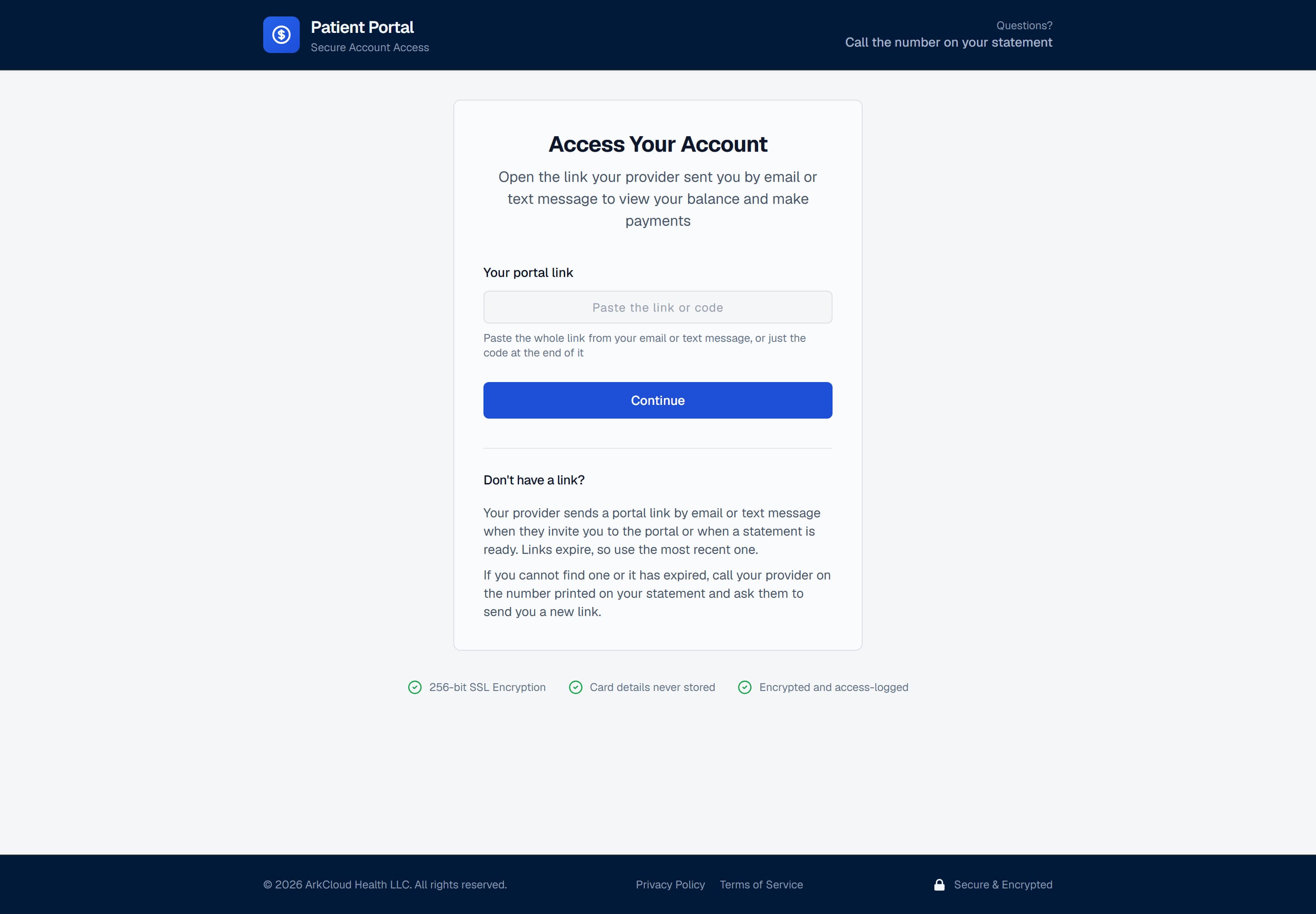
The Access Your Account screen, for pasting the link or its code. The code identifies which account is being opened, and nothing else - on its own it shows no balance, no charge and no statement.
/portal/login
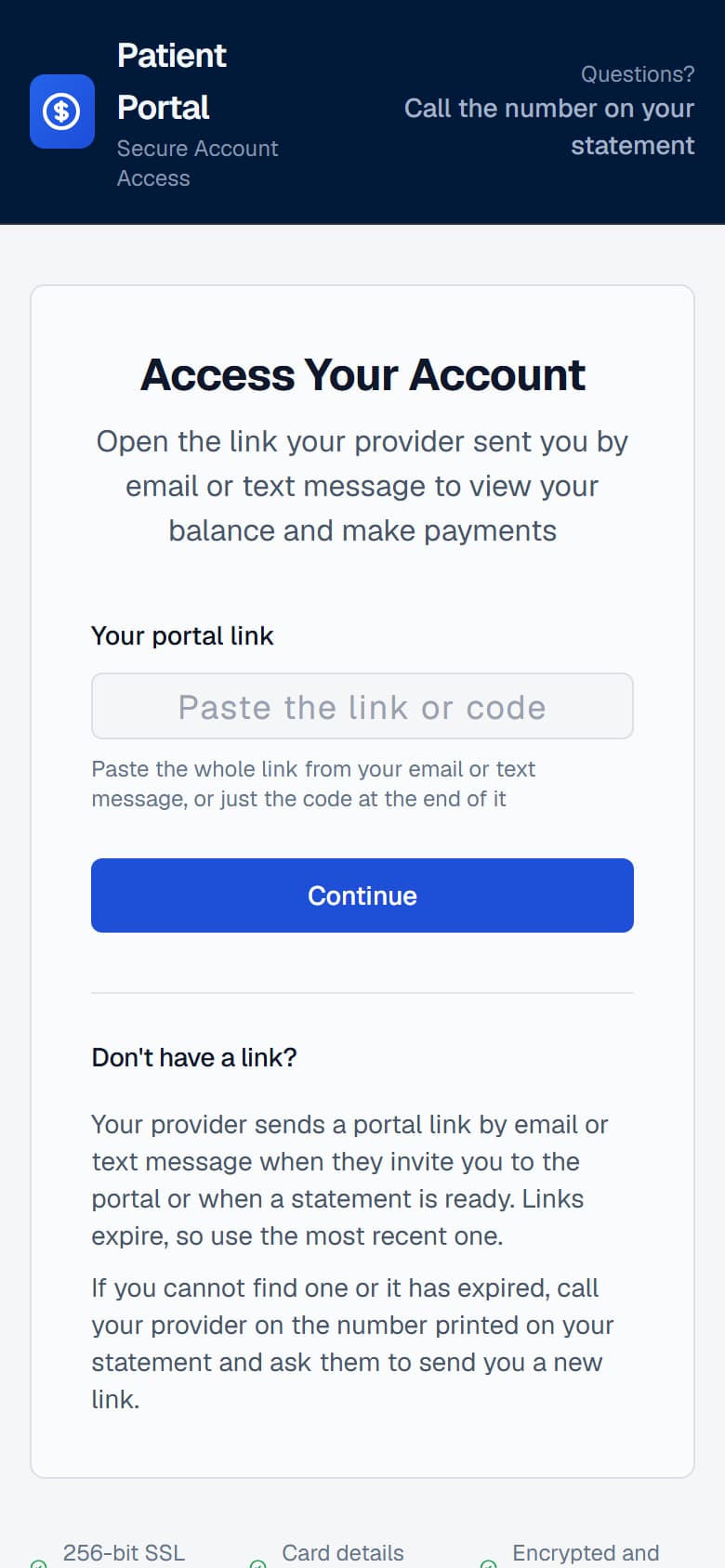
The same screen on a phone, which is how most patients arrive.
/portal/login
Step 2 - confirming who you are
The portal then asks for the date of birth on the patient record. Only after this does any financial information appear.
Step 2
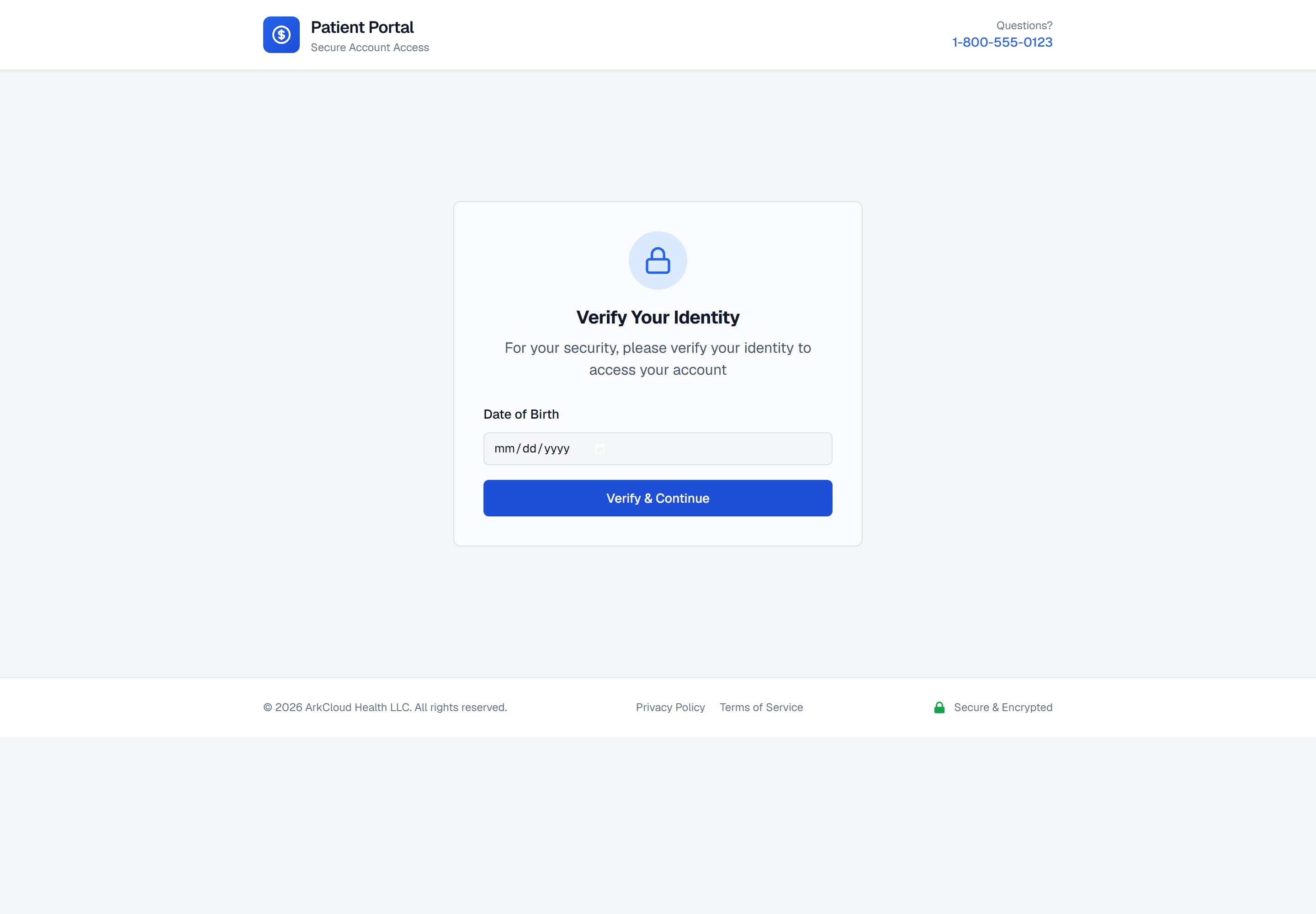
Step 2. The identity check stands between the link and the account, so a link that is forwarded or overheard is not by itself enough to see somebody's balance.
/portal/accounts/{access code}
Expected result: the account summary opens, showing the balance and the tabs beneath it. The verified visit lasts 30 minutes. After that, open the same link again and confirm the date of birth again - a link can be reopened as often as needed until it expires.
Issuing access, for billing teams
ArkCloud RCM → My Work → Accounts → an account → Statements tab → Patient portal access
- Open the patient's account and select the Statements tab.
- Under Patient portal access, select Invite by email or Invite by text.
- Read the result. Sent to (with a masked address) means a configured email or SMS provider accepted the message. Delivery failed means the provider refused it. Not sent - no messaging provider configured means nothing left ArkCloud; the link is still valid and is shown so you can copy it and give it to the patient another way.
| Field or control | What it means |
|---|---|
| Expiry | 30 days from a staff invitation; 45 days from an automatic statement notification. An expired link says so rather than behaving as though it were wrong. |
| Reuse | A link can be reopened any number of times before it expires. The record supports a use limit, but neither way of issuing a link sets one. |
| Verification method | Date of birth. The record also supports other checks, which are not offered when a link is issued. |
| New link | Each invitation issues a new link. Earlier links are not cancelled and keep working until they expire. |
| Revocation | A Supervisor or Admin can revoke a link, with a reason, from the account's portal-links page (below) or, in ArkCloud Rehab, from the patient's Portal access page. It stops working at once. |
| Audit | The invitation (with the masked destination and the delivery outcome), each identity check, and portal activity are recorded. |
ArkCloud RCM → My Work → Accounts → an account → Statements tab → See and revoke this patient's portal links
To end a link sent in error, open See and revoke this patient's portal links under Patient portal access. The page lists the patient's links; a Supervisor or Admin can revoke one with a reason, and it stops working at once. Users who can invite patients can see the list but not revoke.
Troubleshooting
| Field or control | What it means |
|---|---|
| Invalid access link | The code was mistyped or truncated (common when a link wraps across lines in an email). Open the full link, or issue a new one. |
| This access link has expired | Working as intended. Issue a new link. |
| This access link has been revoked | A Supervisor or Admin revoked it. Issue a new link if the patient should still have access. |
| This access link has been locked due to too many failed attempts | Five incorrect identity answers. Confirm the date of birth on the patient record is correct, then issue a new link. |
| Session expired after a while | A verified visit lasts 30 minutes. Open the same link again. |
| No messaging provider configured | No email or SMS provider is set up on this deployment. Copy the link shown and give it to the patient directly. |
| This patient has not consented to text messages | Text-message consent is off by default on a patient record. Use email, or record consent first. |
| The date of birth is refused but the patient is certain | The patient record is probably wrong. Correct it - see account details. |